
Before you start
- You need the Admin role in the company to see Approvals.
- Invite your approvers first and give them the Approver or Admin role. Only those roles can approve.
- Approval steps use the Approval Workflows Add-on. It's $40 per company a month. See pricing.
How Pulsify routes an invoice
- When an invoice arrives, Pulsify checks your Auto-approve rules once. If one matches, the invoice goes straight to Xero or MYOB. A possible duplicate or an invoice with a blocking problem goes to a person instead.
- Otherwise it goes through your steps in order. On each step, every row that matches asks its approver. A row matches when all of its conditions do.
- If no row on a step matches, the step's backup approver is asked. Step 1 always has a backup. Every invoice stops there. A later step with no matching row and no backup is skipped.
- When the last step is approved, Pulsify sends the invoice to Xero or MYOB.
Amounts are tested on the invoice total including GST, in your company's base currency. Invoices in other currencies are converted first, using the rates in your company settings.
1 Open Approvals
Click Approvals in the sidebar. The page opens on the Invoices board. If purchase orders are turned on, Purchase orders has its own board above it. Rules on one board never apply to the other.
In this example, invoices go to a site manager first, chosen by job. They then go to finance for cost approval.
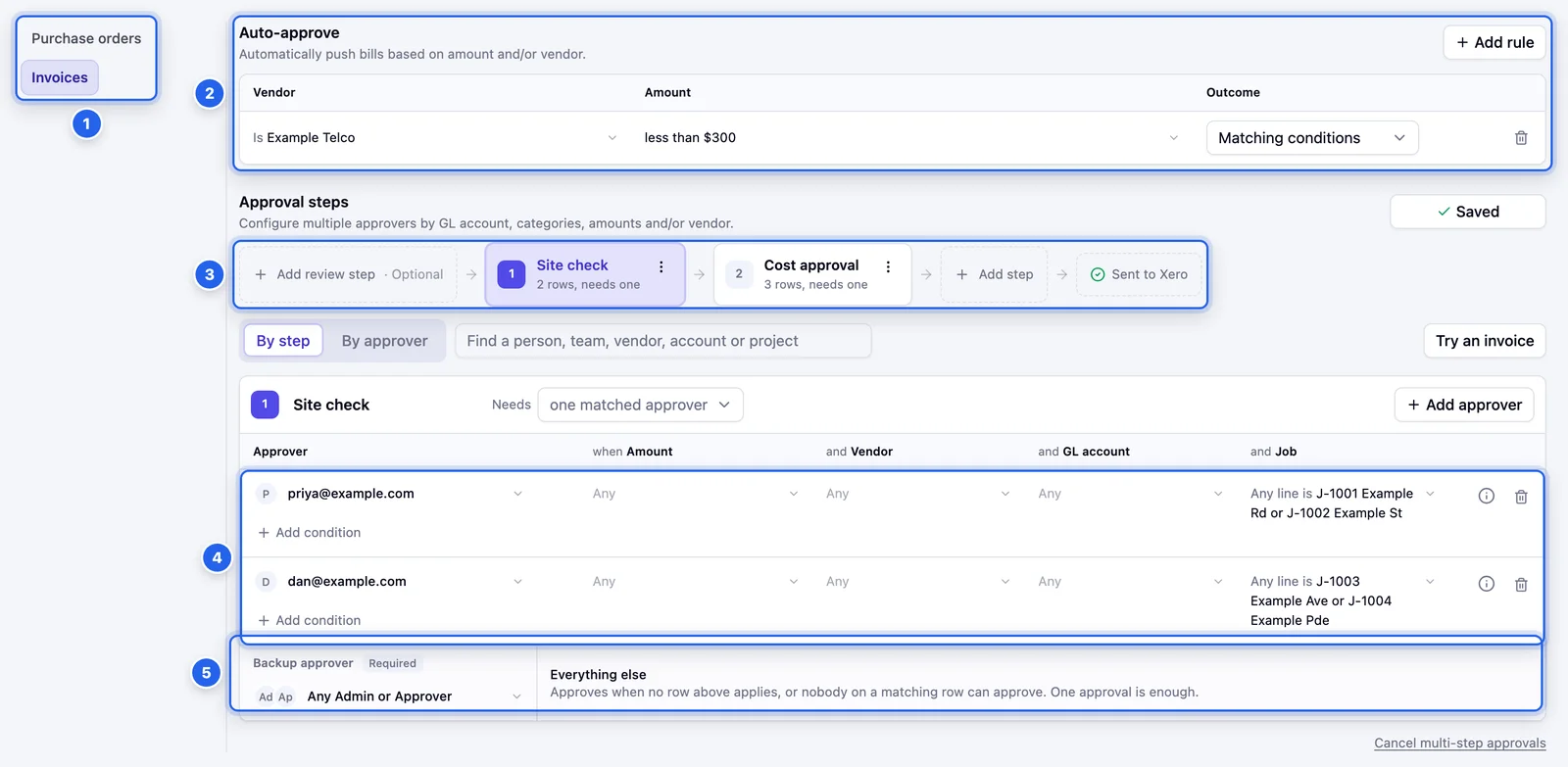
- 1 Switch between the Purchase orders and Invoices boards.
- 2 Auto-approve rules. See Auto-approve rules.
- 3 Your steps, in order. Click a step to see its approvers.
- 4 Each row is an approver and the invoices they sign.
- 5 The backup approver signs anything no row covers.
2 Turn on multi-step approvals
Until you turn it on, any Admin or Approver can approve any invoice. Click Enable multi-step approvals, check the price and confirm. If your plan already includes the add-on, the dialog says so and you won't be charged.
Pulsify starts each board with one step that any Admin or Approver can approve. Change it in the steps below.
You're charged a pro-rated amount for the rest of this billing period straight away. You can cancel with Cancel multi-step approvals at the bottom of the board. Your steps are saved but turned off straight away. Invoices waiting are matched again. Most move to the default rule. You keep paying for the add-on until the end of the period you've paid for.
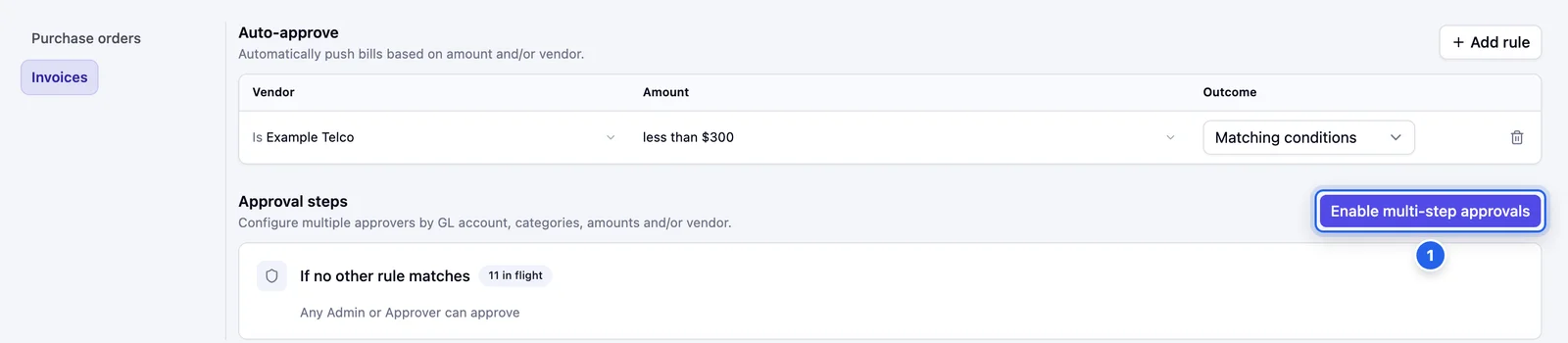
- 1 Enable multi-step approvals
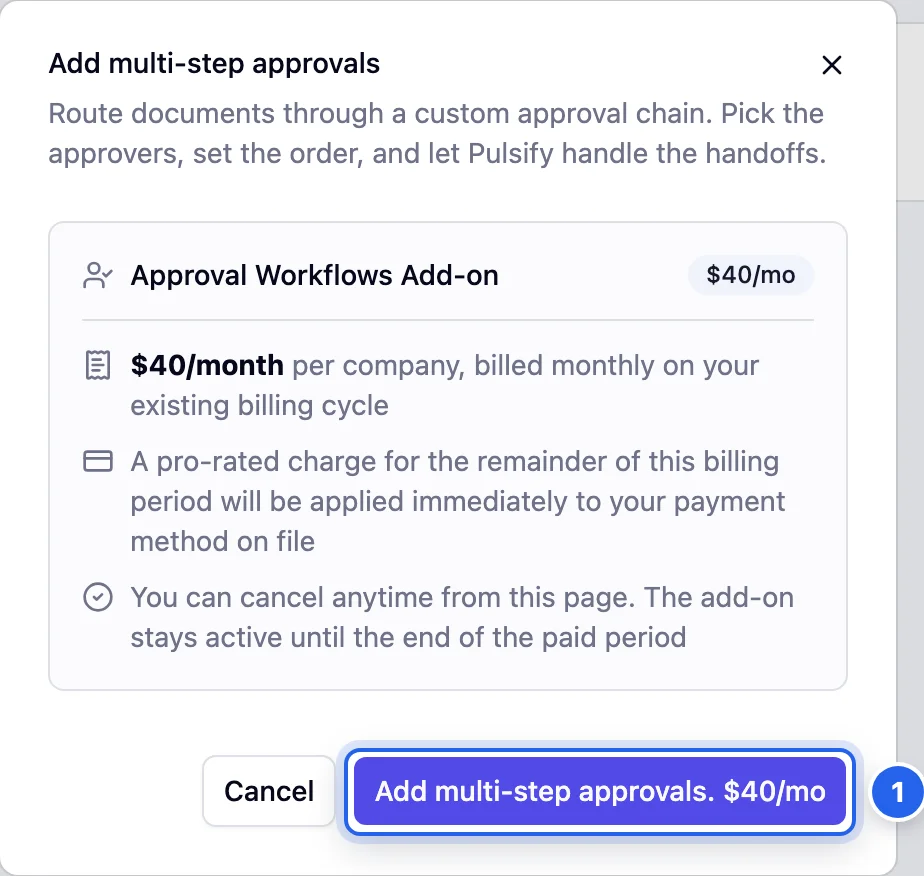
- 1 Confirms the add-on for this company. The price comes from your plan.
3 Add your steps
Each step is one round of approval. An invoice has to clear every step it stops at, in order. Click Add step at the end of the row of steps to add one. Then click ⋮ on the step and choose Rename to give it a name your team will recognise, like Site check or Cost approval.
- Needs one matched approver means the first approval clears the step. Choose all matched approvers if everyone the step asks has to sign.
- To remove a step, choose Delete step from its menu. Step 1 can't be deleted, because every invoice starts there.
- Click Add review step if someone should check the coding before anyone approves. Reviewers can edit the invoice and send it on for approval, but can't approve it.
4 Add approvers to each step
Click a step, then Add approver. A new row appears with the picker open. Tick a role or a team. Or search for a person. You can pick more than one.
Each team shows how many of its people can approve in this company. A team with nobody who can approve can't be picked. If a role or team on a row has nobody who can approve, the row shows a warning like No team members or None eligible. You can still save the board.
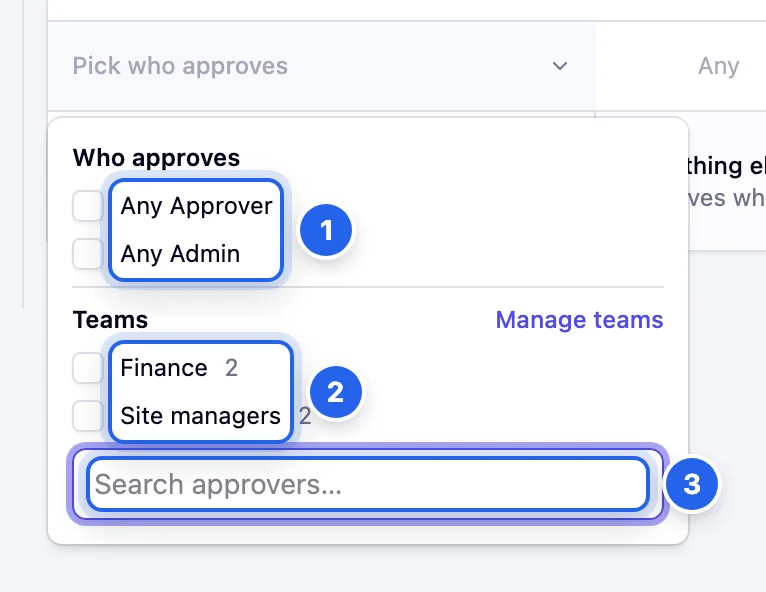
- 1 Any Approver or Any Admin asks everyone with that role.
- 2 A team asks everyone in it. See Teams.
- 3 Search for one person by email.
5 Add conditions to each row
A row with no conditions asks its approver about every invoice that reaches the step. To narrow it down, click a cell in the row:
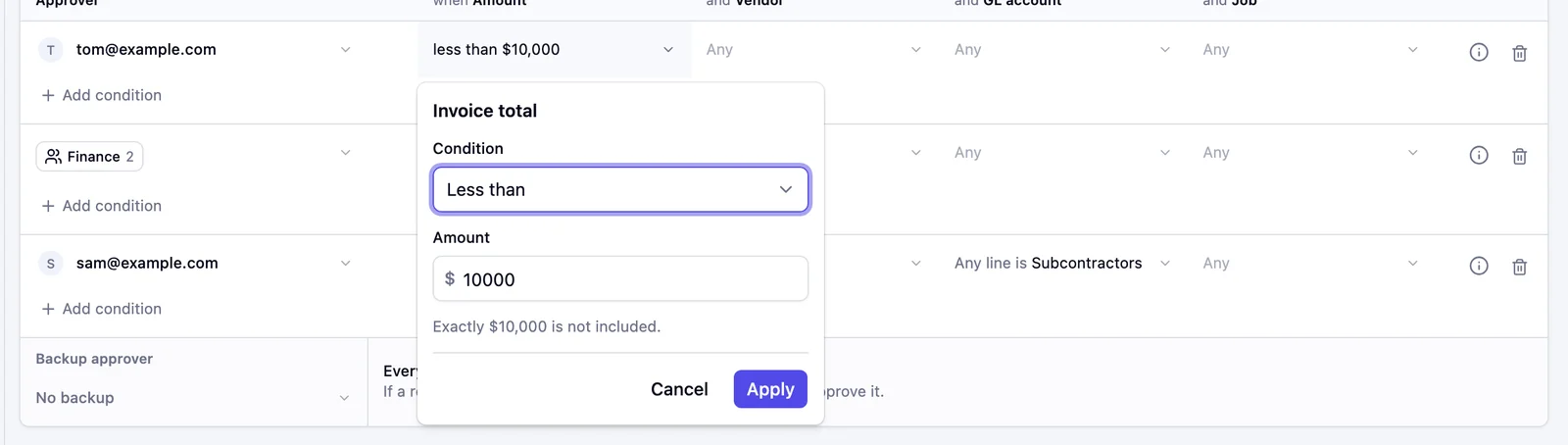
- Amount: Greater than or equal to, Less than or Between. The editor tells you whether the exact amount is included.
- Vendor: Is or Is not one or more suppliers.
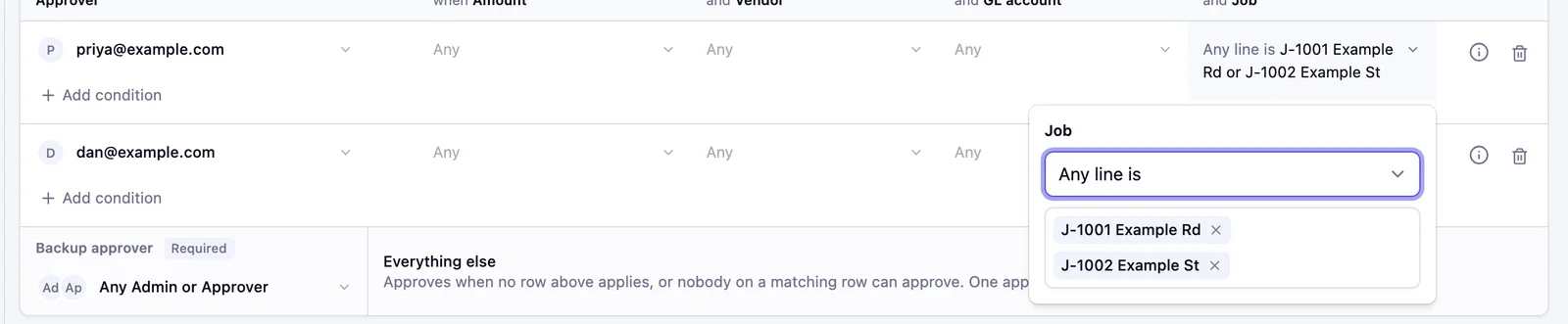
- GL account and Job (or whatever your tracking categories are called): Any line is or Any line is not. One matching line is enough.
A row only matches when all of its conditions do. In the Amount editor click Apply to keep a change. To give the same approver a second set of conditions, click Add condition under their name.
6 Set the backup approver
The last row on each step is its Backup approver. It approves when no row above applies. It also steps in when nobody on a matching row can approve. One approval from the backup is enough.
- Step 1 must have a backup, so every invoice has somewhere to go. It starts as Any Admin or Approver.
- On later steps the backup is optional. With No backup, invoices no row covers skip the step.
- If a row applies but nobody on it can approve, for example because they've left, the backup approver is asked. With No backup, your Admins are asked.
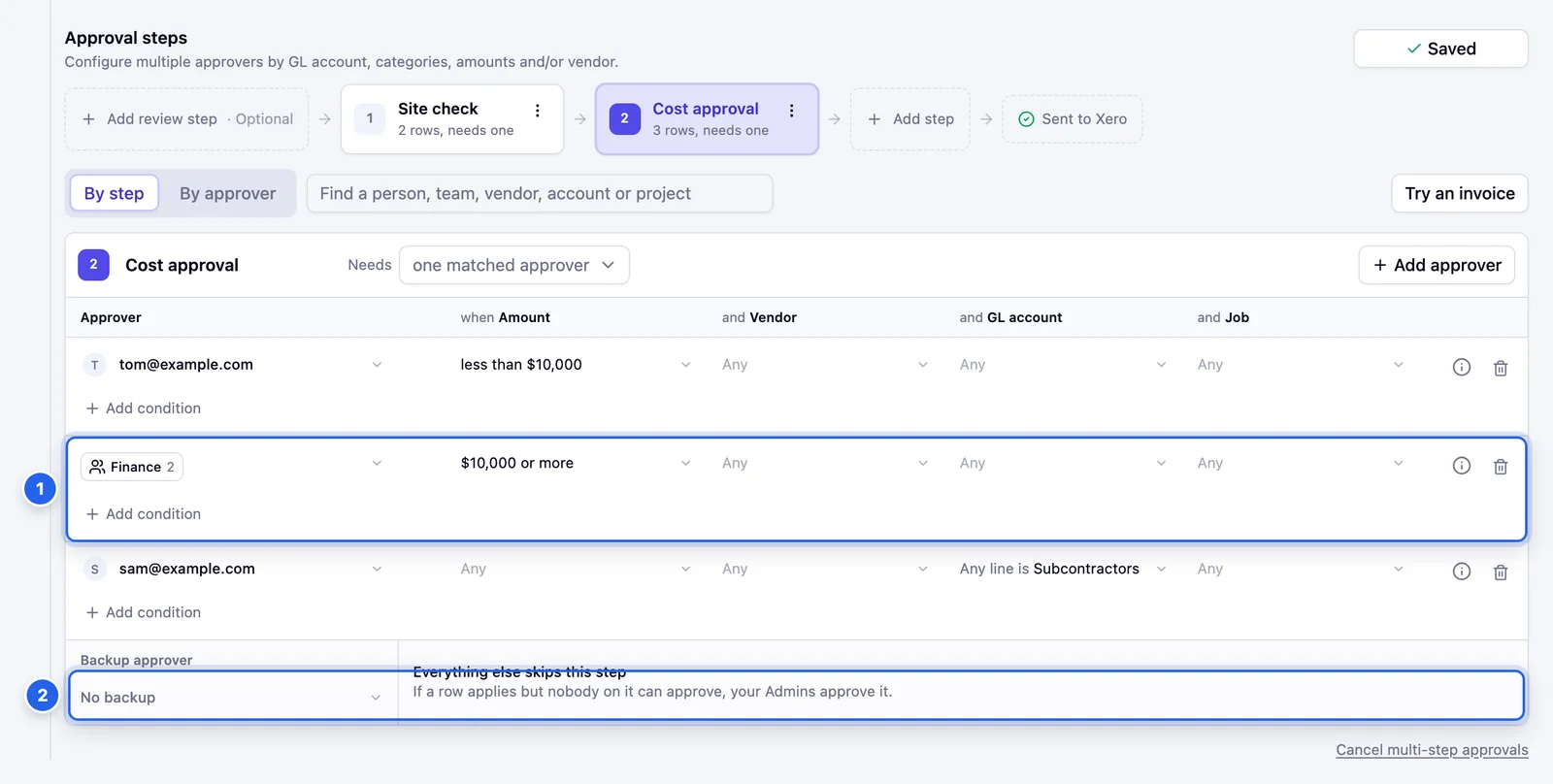
- 1 A team as the approver. Here Finance signs anything of $10,000 or more.
- 2 With No backup, invoices no row covers skip this step.
7 Save the board
Changes to steps and rows don't take effect until you click Save board. Until then, invoices keep using the saved board. Click Discard to undo everything since the last save.
When you save, every invoice waiting on that board starts again at the first step of its new path. Their earlier approvals stay in the history but no longer count.

- 1 How many invoices will start again on the new path.
- 2 Save board
8 Check it with Try an invoice
Click Try an invoice and pick a real invoice. Pulsify shows who each step would ask, using your unsaved changes. It hides the rows that don't apply and marks why each condition did or didn't match. Nothing is approved or saved.
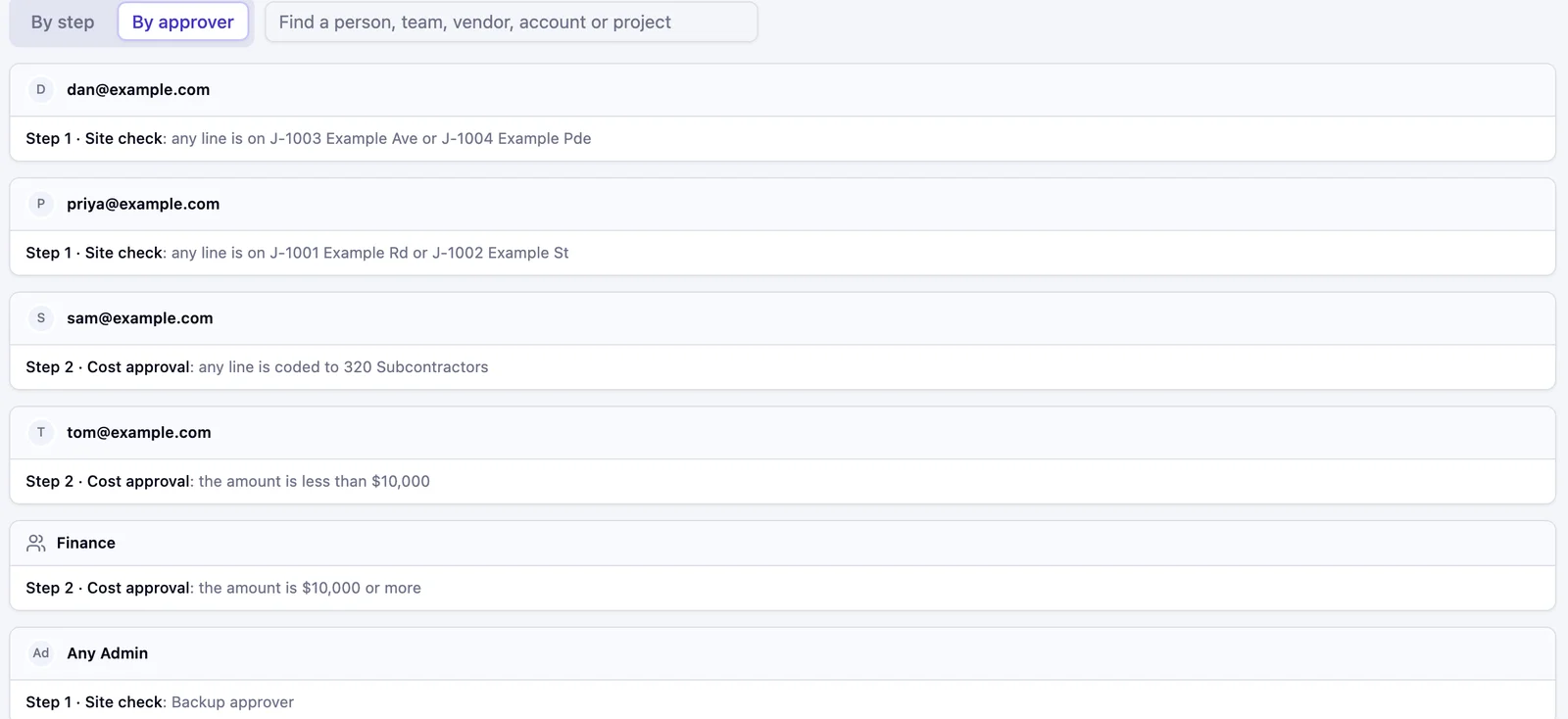
To check what one person approves, click By approver. Or type a person, team, vendor, account or project in the find box.
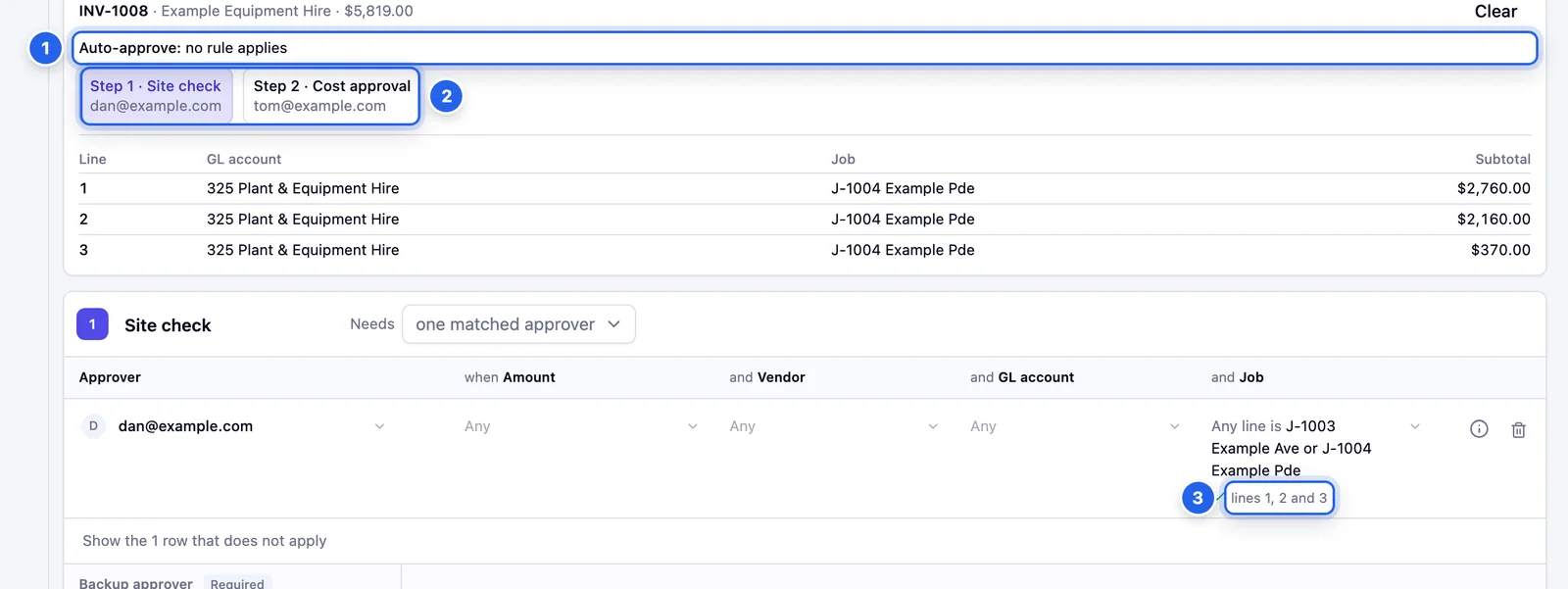
- 1 Whether an auto-approve rule catches it.
- 2 Who each step would ask.
- 3 Which lines met the condition.
Auto-approve rules
Auto-approve rules send matching invoices to Xero or MYOB with nobody approving them. Keep them for small bills you'd approve without looking, like a phone bill under $300. They work with or without multi-step approvals.
Click Add rule, then set the Vendor and Amount. Rules save as soon as you change them. Pick the Outcome:
- Matching conditions approves invoices that meet the rule's vendor and amount.
- Auto-approve all approves every new invoice.
- Otherwise auto-approve approves new invoices that no row with a condition applies to.
Pulsify asks you to confirm the last two. Rules only run once, when an invoice first arrives. If Xero or MYOB refuses an auto-approved invoice, it goes to the first step with someone on it and shows as Failed.
Purchase order approvals
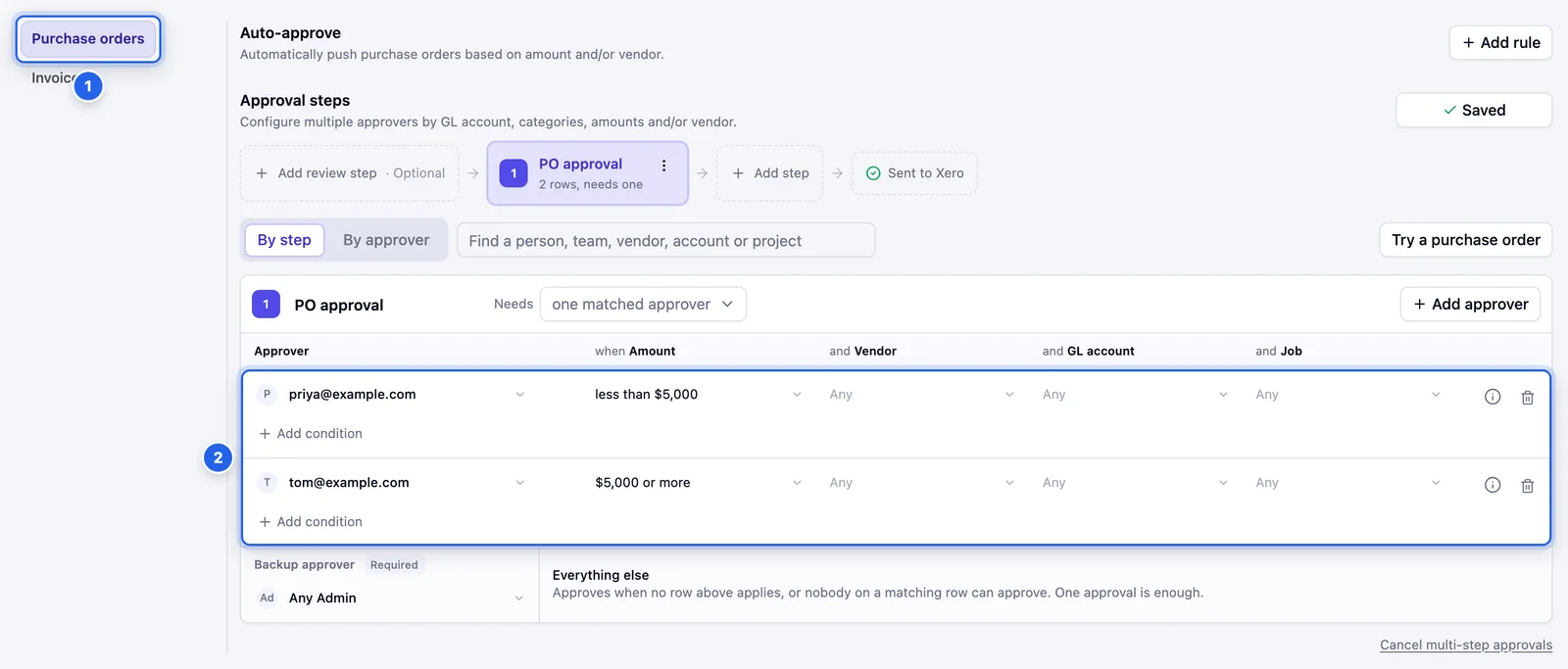
Purchase orders have their own board (1). It works the same way, with its own steps, rows and auto-approve rules. The amount is the PO total. In this example, POs under $5,000 go to Priya and bigger ones go to Tom (2).
Anyone in the company can raise a PO. When multi-step approvals are on, they click Send for approval. When the last step approves it, Pulsify creates it in Xero. See Create purchase orders.
Teams
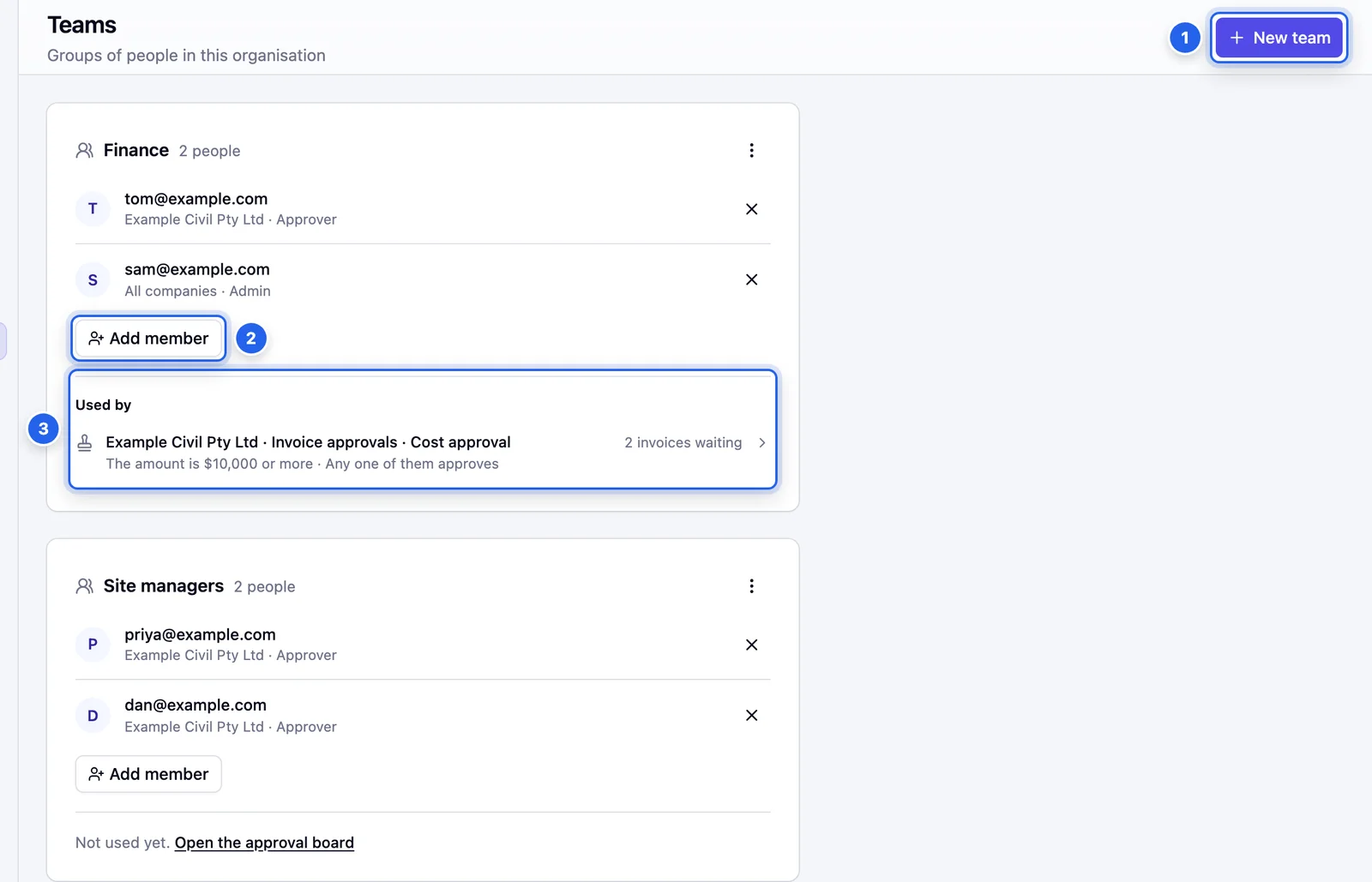
A team is a named group of people you can pick as an approver or a backup. When someone joins or leaves, update the team once and every board that uses it changes too. Invoices already waiting on the team are updated straight away, without restarting. Someone who joins is asked too. Someone who leaves is taken off unless that would leave nobody on the step or clear it.
Go to Settings and open Teams under your organisation. You need to be an organisation Admin.
- Click New team (1), name it and add people with Add member (2).
- Used by (3) shows every step that names the team and how many invoices are waiting on it.
- A team that a board uses can't be deleted. Its last member can't be removed either. Take it off the board first.
What your approvers see
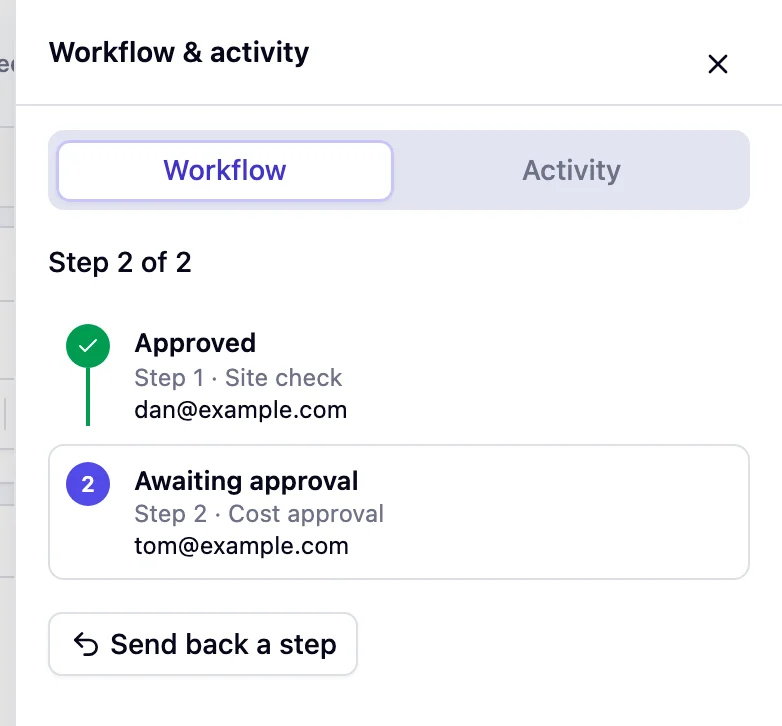
When it's someone's turn, the invoice shows under My turn in their Invoices queue. Inside the invoice, the bar at the top shows each step and who it's waiting on. Click Workflow & activity to see who has approved it so far and its full history.

- If you're on two steps in a row, one click approves both. The button reads Approve 2 steps. If the steps are still named Step 1 and Step 2 it reads Approve Steps 1 and 2.
- To return an invoice to an earlier step, click Send back a step, pick the step and say why.
- If you change the total, supplier, a GL account or a job, approval starts again from the beginning. Pulsify asks first if it would undo someone's approval.
- An Admin who isn't on the step can still approve it. Pulsify asks them to confirm. The history records it as an override.
Common questions
Why was an invoice sent to two people on the same step?
Every row that matches asks its approver. If one row covers invoices under $10,000 and another covers any line coded to Subcontractors, an $8,000 subcontractor bill asks both. Set the step to needs one matched approver and either of them can approve it.
Why did an invoice skip a step?
A step is skipped when no row on it matches and the step has no backup approver. Add a backup if every invoice should stop at that step.
Why can't I see Approvals in the sidebar?
Only company Admins can see and change approvals. Ask an organisation Administrator to change your role in Settings, Members.
The person I want isn't in the approver list. Why?
The list only shows people with the Approver or Admin role in this company. An organisation Administrator can invite them from Settings, Members or change their role. Then open the picker again.
What happens to invoices already waiting when I save?
Every invoice waiting on that board starts again at the first step of its new path. Approvals it already had stay in its history but no longer count. Pulsify shows how many invoices will restart before you save.
Does editing an invoice restart its approval?
Only if you change something the board routes on, like the total, the supplier or a line's amount, GL account or job. Adding or removing a line counts too. Pulsify asks before it saves if the change would undo someone's approval.
Do purchase orders go through approvals?
Yes. Purchase orders have their own board. Pick Purchase orders on the left of the Approvals page. It only shows when purchase orders are turned on for the company.
What does multi-step approval cost?
Routing invoices through your own steps is part of the Approval Workflows Add-on, which is $40 per company a month. Some plans include it. The price shows in the app before you confirm. Auto-approve rules work without it.
Stuck on something?
Book a call and we'll set it up with you.