
Before you start
- You need a Xero or MYOB login with access to the organisation or company file you want to connect.
- Only company Admins can connect or change the connection.
1 Choose Xero or MYOB
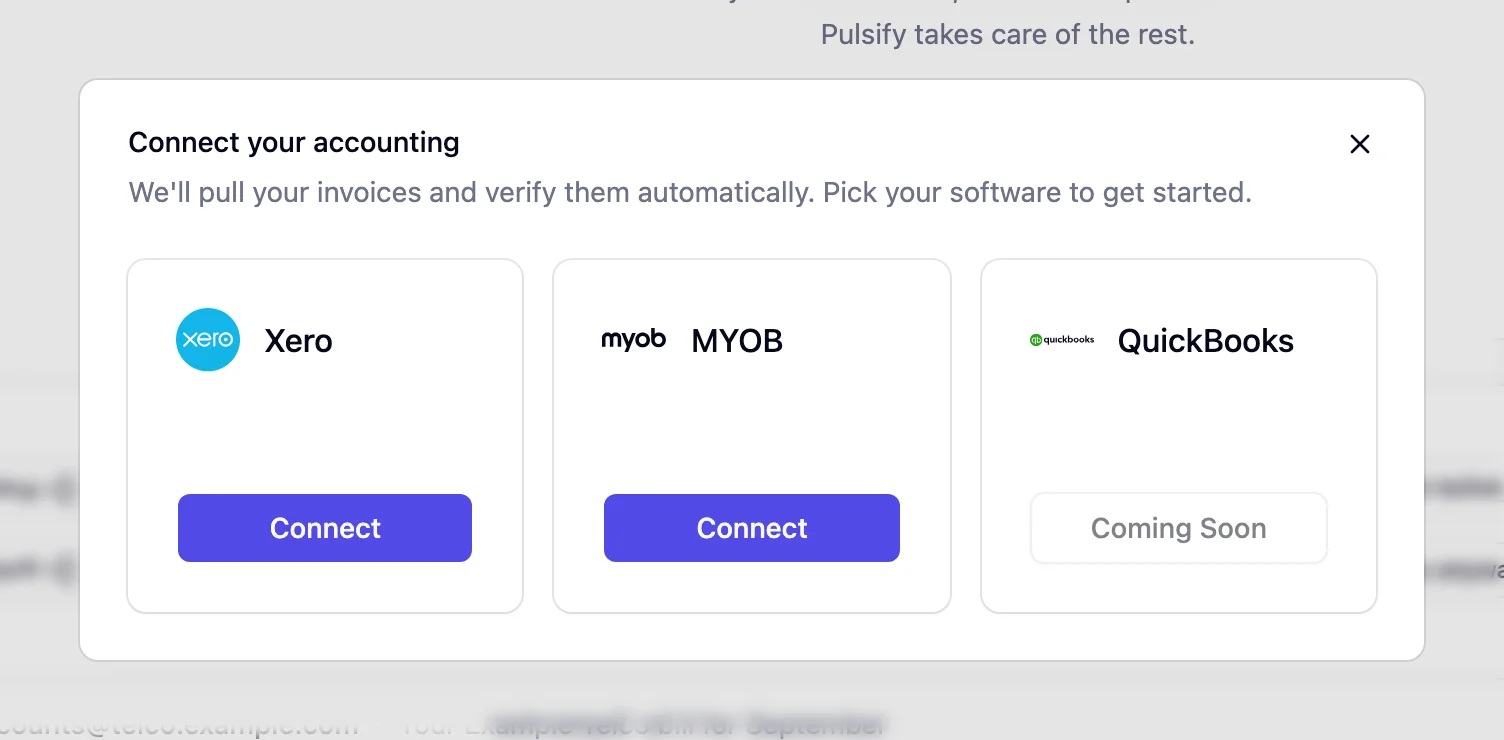
The first time you sign in, Pulsify shows Welcome aboard. Click your accounting software. You'll be taken to Xero or MYOB to sign in and allow Pulsify access, then brought back.
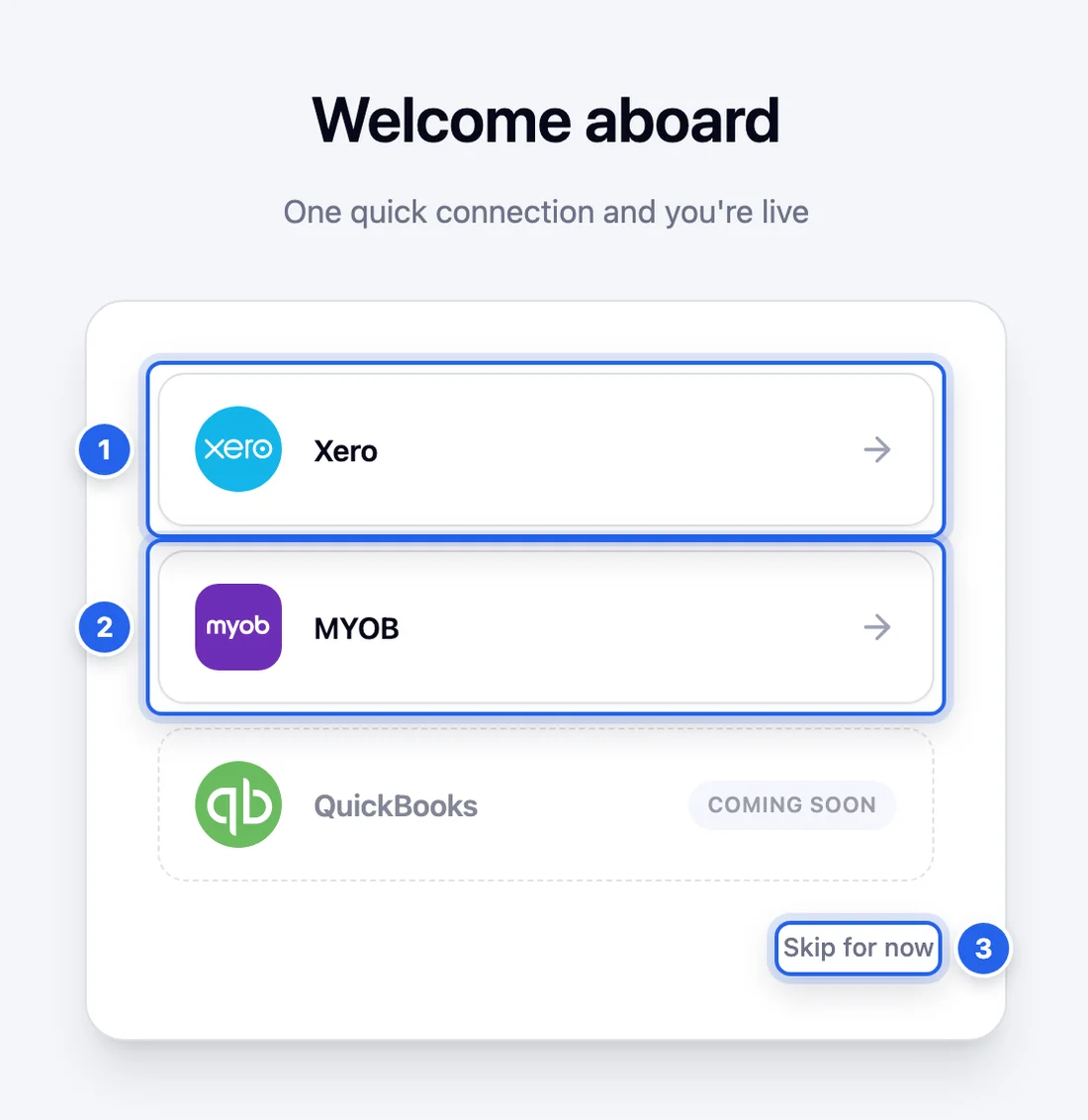
- 1 Xero
- 2 MYOB
- 3 Skip for now if you want to look around first. You can connect later.
2 Pick your organisation
If you allow more than one organisation when you sign in to Xero, Pulsify asks you to Choose a Xero organisation. Pick the one for this company and click Connect. An organisation that's already linked to another Pulsify company is marked Already connected to another company.
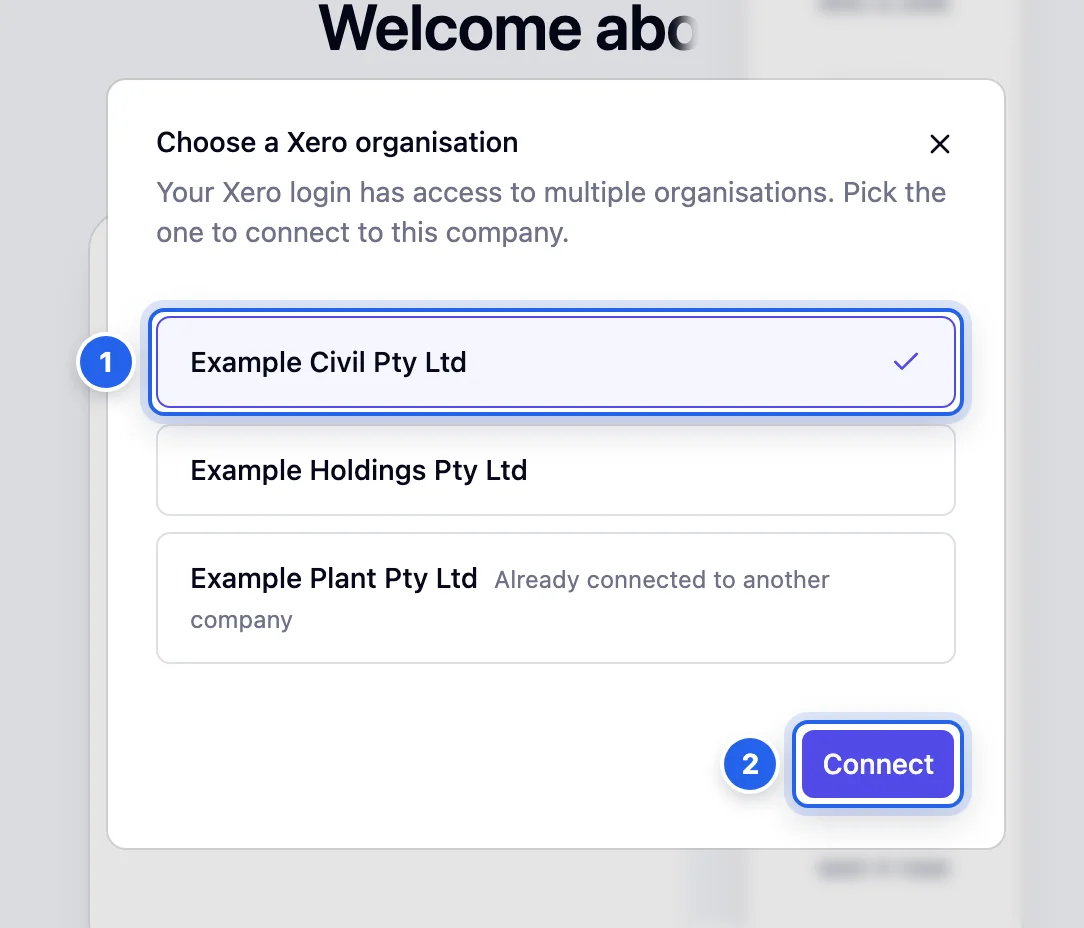
- 1 The organisation to connect to this company.
- 2 Connect
3 Upload your first document
When you see You're all set with Xero (or MYOB), you're connected. Pulsify names your company after your Xero organisation or MYOB company file and starts bringing your data across.
Next, send it an invoice. Get invoices into Pulsify covers every way in.
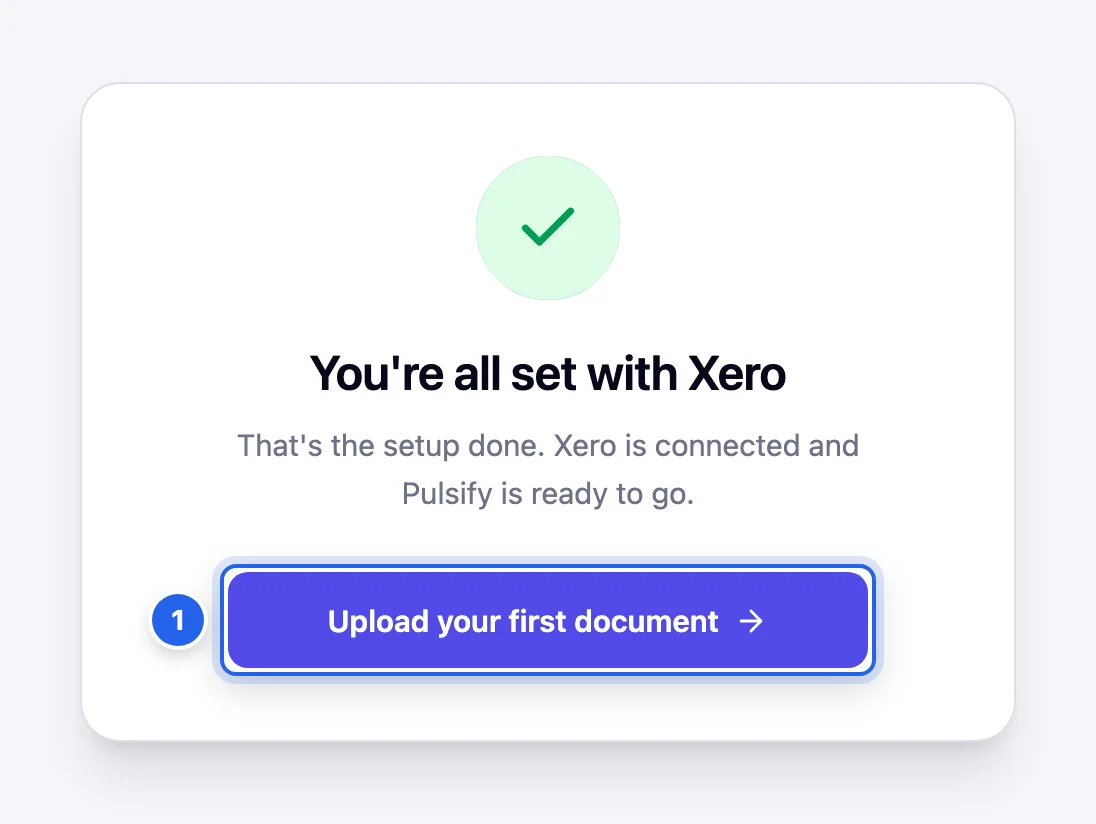
- 1 Upload your first document takes you to the Upload page.
4 Check the connection
Go to Settings and open Integrations under your company. The Xero or MYOB card shows when Pulsify last synced.
If you've just added a supplier or account in Xero and can't see it in Pulsify, click Sync Xero.
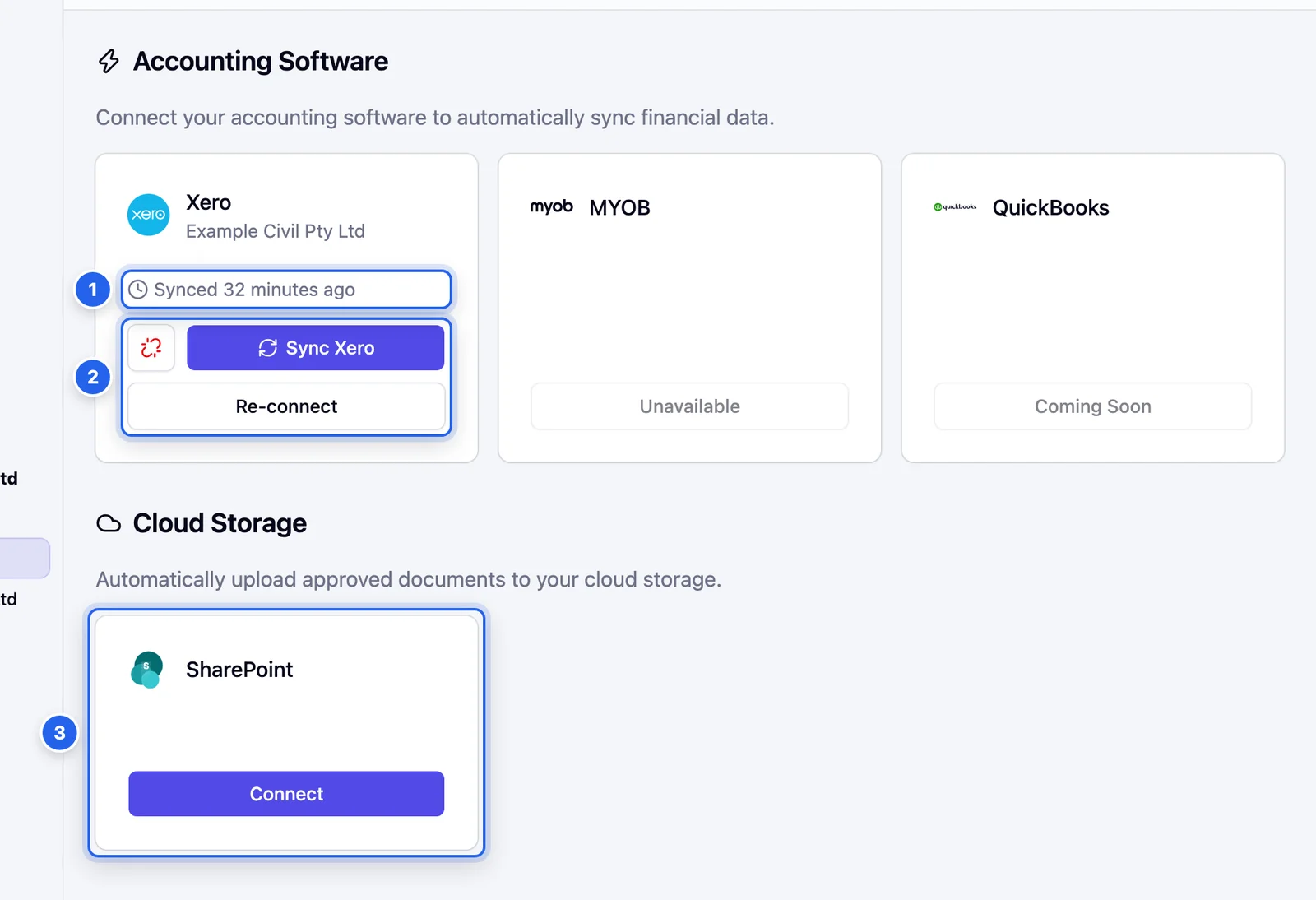
- 1 When Pulsify last synced with Xero.
- 2 Sync Xero pulls fresh data now. Re-connect fixes an expired connection. After a disconnect the button reads Reconnect. The red icon disconnects Xero. MYOB has no disconnect icon.
- 3 SharePoint saves approved documents to a SharePoint library automatically.
If you clicked Skip for now
Pulsify still creates your company, but you can't upload documents until you connect. The Upload page shows Let's connect your accounting instead. Click Connect accounting (1) and pick Xero or MYOB.

Common questions
What does Pulsify bring across from Xero or MYOB?
Your suppliers (plus other contacts from Xero), chart of accounts, tax rates, tracking categories, inventory items and purchase orders. You can see all of it on the Database page.
Can I import suppliers from a spreadsheet?
No. Suppliers come across from Xero or MYOB. If an invoice arrives from a new supplier, you can create them in your accounting software straight from the invoice with Create new supplier.
Can one company connect to both Xero and MYOB?
No. Each company in Pulsify connects to one Xero organisation or one MYOB company file. To run both, add a second company in Settings, Companies.
Does Pulsify work with QuickBooks?
Not yet. QuickBooks shows as Coming Soon on the connect screen.
What status are bills created with in Xero or MYOB?
You choose it in Settings, General for your company, under Initial document status. MYOB only offers one option, so it is fixed there.
Stuck on something?
Book a call and we'll set it up with you.