
Reading the status
Every invoice in your queue shows a status. On hold, Returned and Failed replace Ready, Check and Needs fix when they apply.
| Status | What it means | Can you approve? |
|---|---|---|
| Ready | No serious problems. There may still be minor warnings inside. | Yes |
| Check | At least one error worth a look, like changed bank details or a possible duplicate. | Yes, after you've checked it |
| Needs fix | Something Xero or MYOB requires is missing, like the supplier, date, due date or an account on a line. | Not until it's fixed |
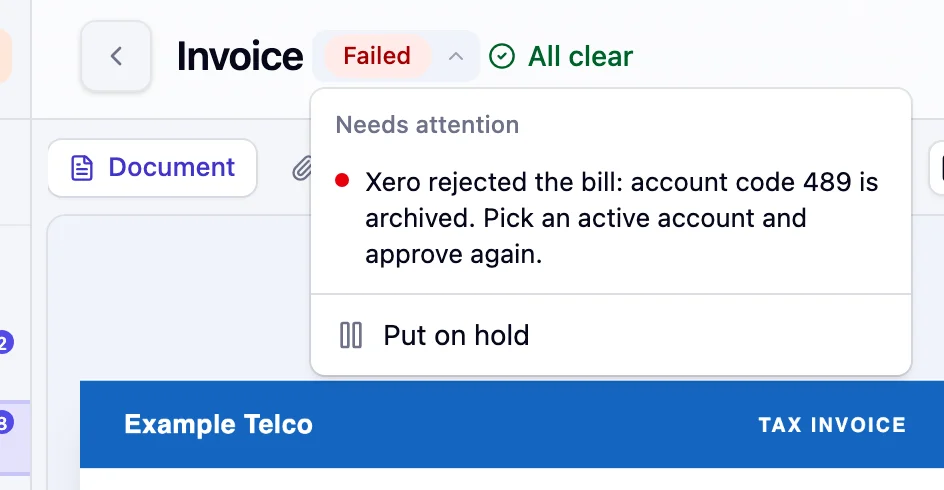
| Failed | It was approved, but Xero or MYOB refused it. | Fix it, then approve again |
| On hold | Someone put it on hold from the status menu. | Choose Clear on hold when you're ready |
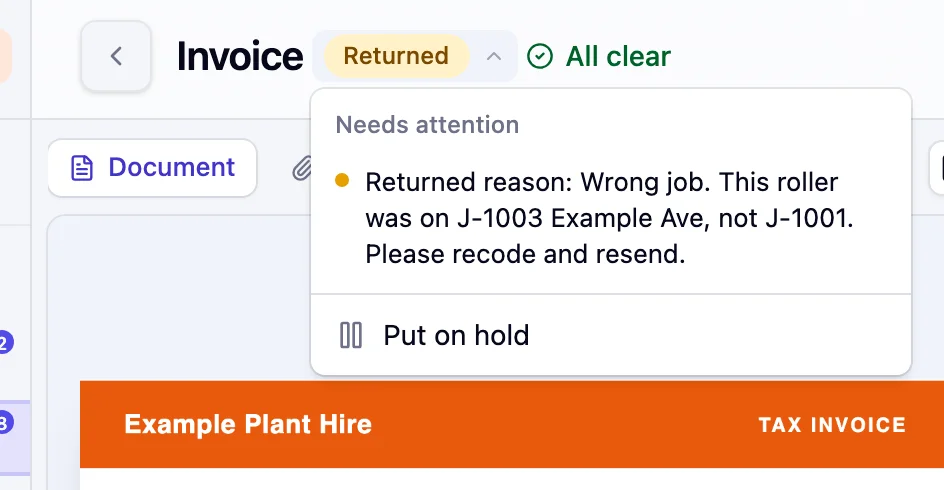
| Returned | An approver sent it back. The status menu shows why. | Yes, once it's sorted |
| Awaiting | It's waiting on another approver, named in the status. A step set to a role shows just Awaiting. | Not your turn yet |
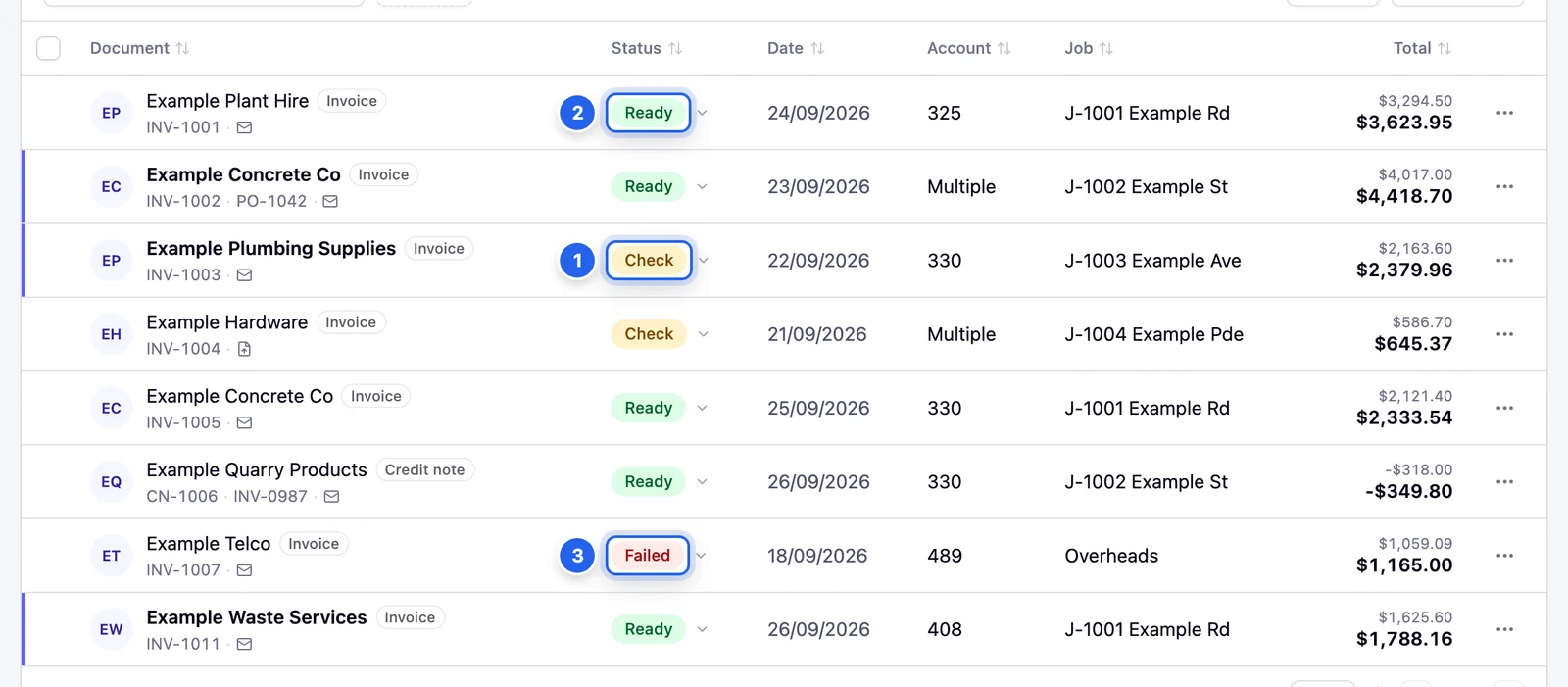
- 1 Check
- 2 Ready
- 3 Failed
For Returned and Failed, click the status to see why. The menu shows the approver's reason or the message from Xero or MYOB.
Errors and warnings
Inside an invoice, the header counts problems as errors (red) and warnings (amber), or shows All clear. Errors are the serious ones and turn the invoice to Check, unless it's already Needs fix. Warnings don't change its status. A line with an error or warning is highlighted in amber.
Clearing them. Most checks clear themselves once you fix the field they point to. A few are judgement calls, like a customer name that's spelled differently. Those stay until you click the small flag icon next to the message to dismiss them. The reference below says which is which.
The ones that matter most
Bank details have changed
The BSB or account number on the invoice doesn't match the supplier's details in Xero or MYOB. Changed bank details are one of the most common forms of invoice fraud: a scammer sends a real-looking invoice with their own account on it.
What to do: call the supplier on a number you already have, not one from the invoice or email, and ask them to confirm. If the change is genuine, update the supplier in Xero or MYOB. If not, reject the invoice.
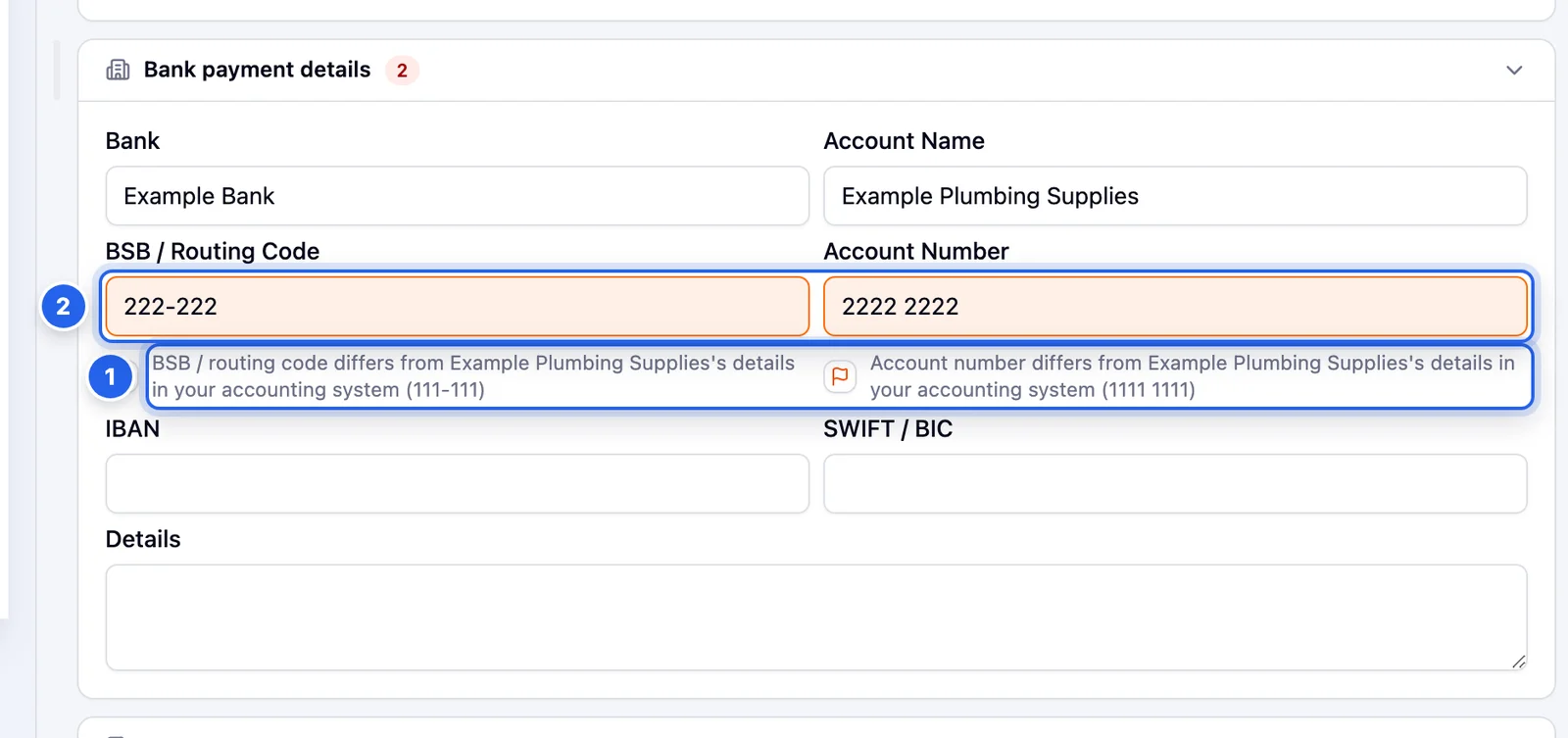
- 1 The warning shows the details on file in your accounting system.
- 2 The BSB and account number read from this invoice.
Possible duplicate
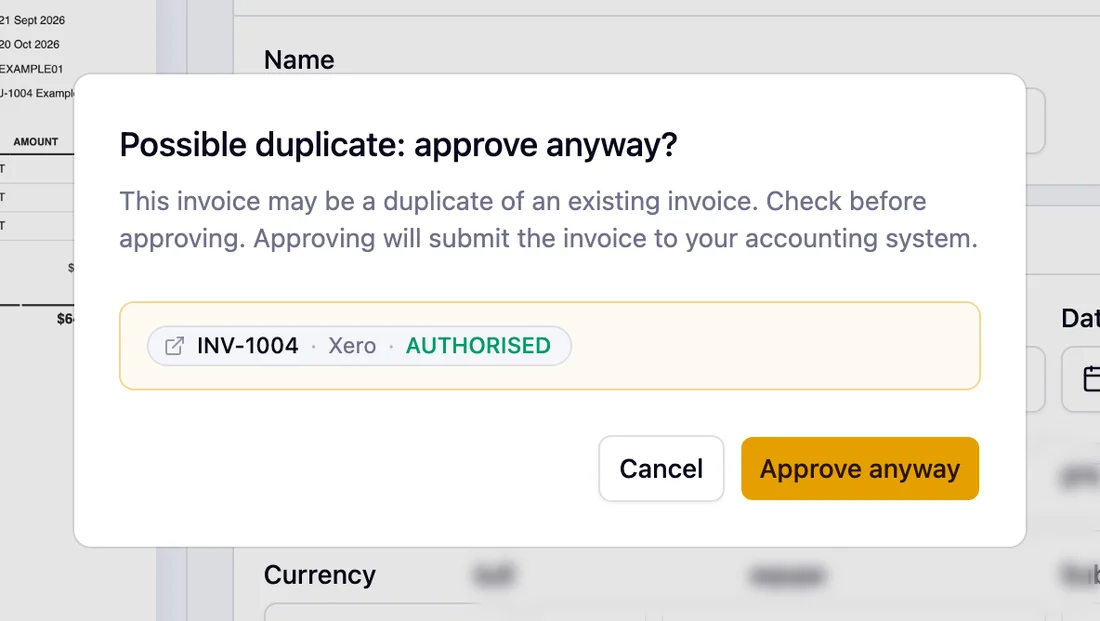
Another invoice has the same invoice number and the same supplier, date or ABN. Pulsify checks invoices already in Pulsify and bills keyed straight into Xero or MYOB. The banner links to the match so you can compare.
What to do: if it's the same invoice, archive or reject this copy. If it's genuinely different, approve it. Pulsify asks Possible duplicate: approve anyway? first.

Supplier not found
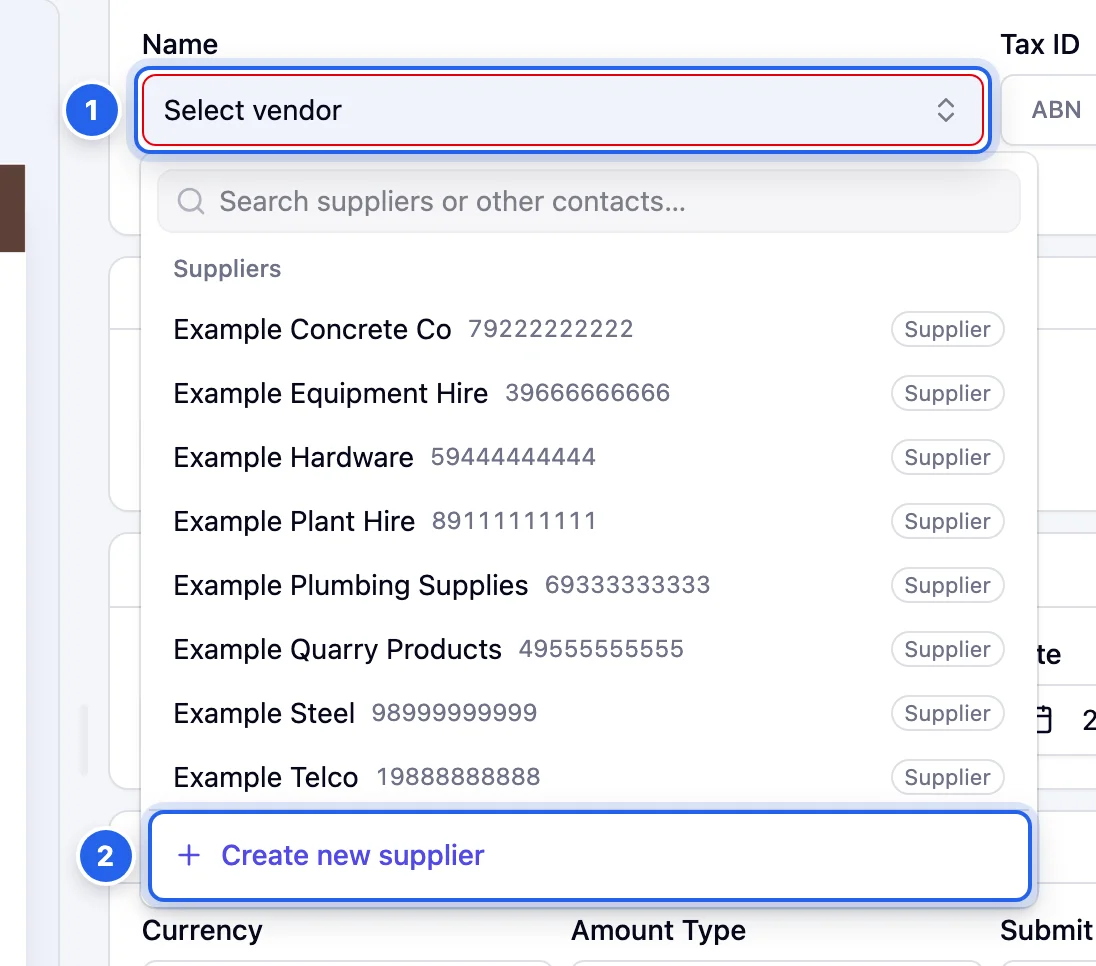
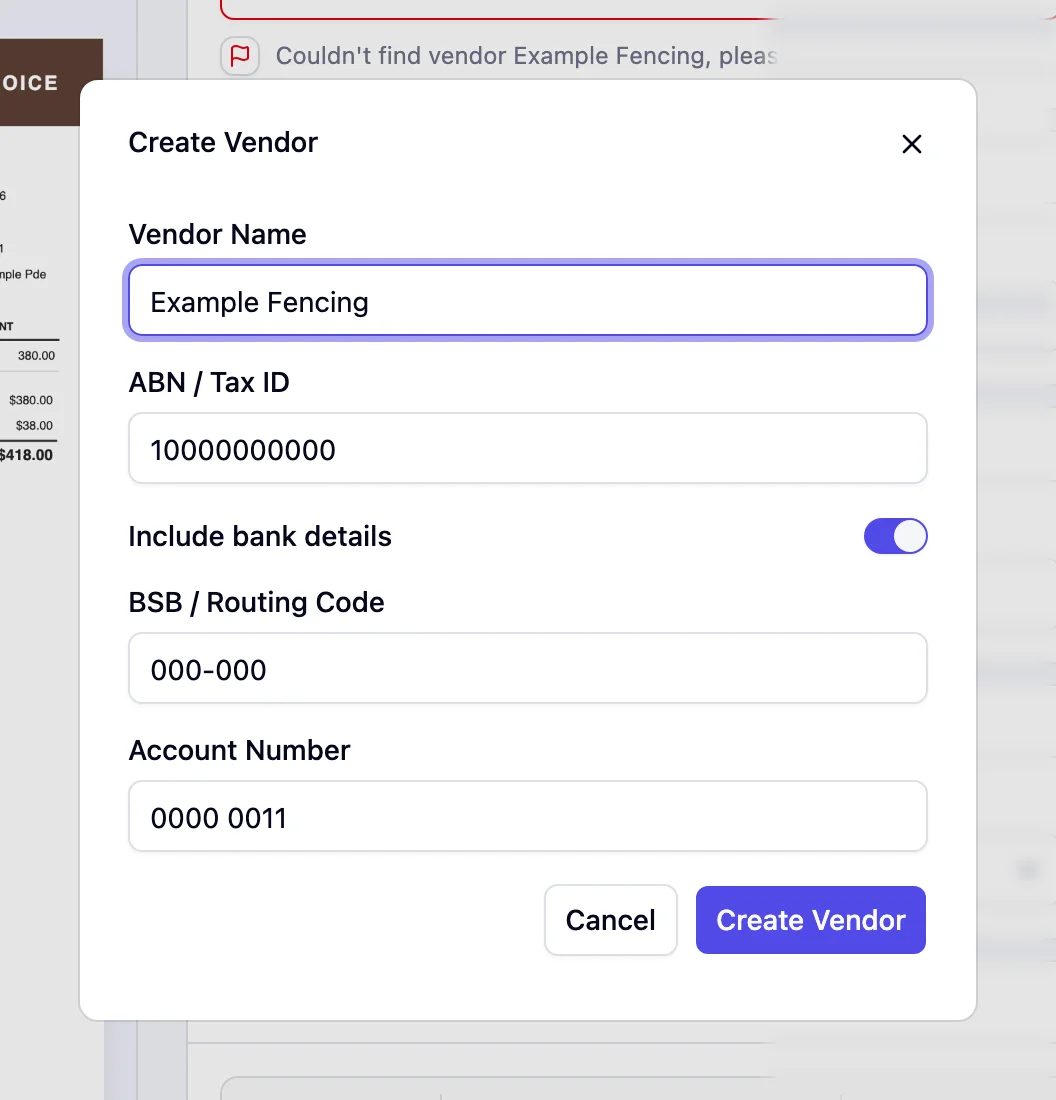
Pulsify couldn't match the supplier to a contact in Xero or MYOB. The invoice is marked Needs fix. Open the supplier list and pick the right contact. For a new supplier, click Create new supplier. Pulsify creates them in Xero or MYOB for you, with their ABN and, if you like, their bank details.
ABN problems
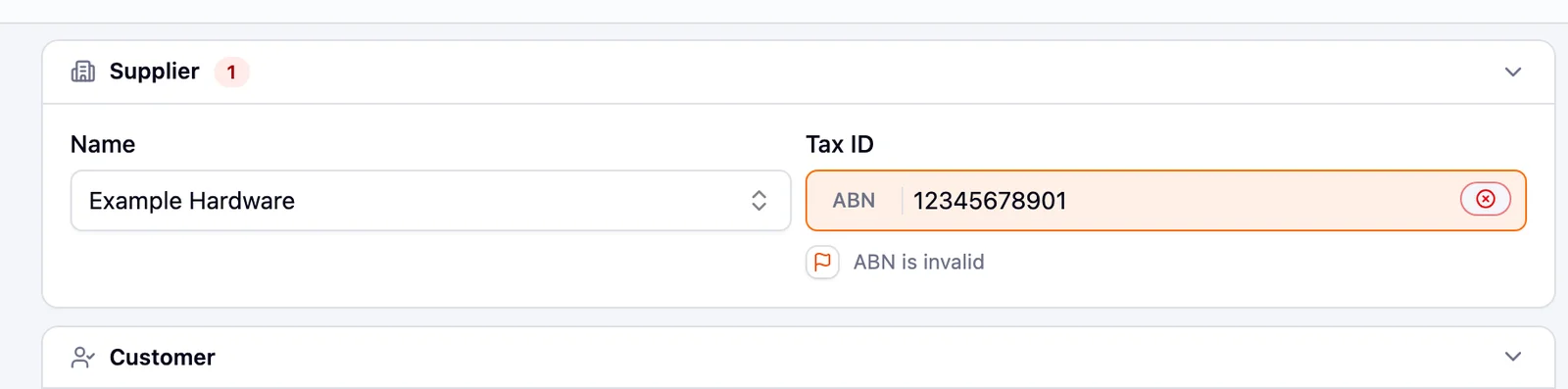
Pulsify checks each supplier's ABN with the Australian Business Register. An invalid ABN is an error. A supplier charging GST without being registered for it is a warning. You can't claim that GST back, so ask for a corrected invoice.
Sender not verified
A red band across the invoice means the email that brought it failed the checks that prove who sent it. It may be spoofed. Treat it like changed bank details and confirm with the supplier before you approve. Files you upload yourself never show this.

Every check, A to Z
Messages appear exactly as written here. Text in curly brackets is filled in with the supplier, number or amount.
Supplier and ABN
For suppliers outside Australia, ABN in the Vendor messages reads NZBN, VAT ID or Tax ID instead.
“Couldn't find vendor {name}, please select a match”
ErrorThe supplier on the invoice doesn't match a contact in Xero or MYOB. The invoice is marked Needs fix. What to do: Pick the right supplier from the list, or click Create new supplier.
Clears when fixed
“Vendor ABN couldn't be verified as no match was found”
ErrorNo supplier is picked yet. The ABN can't be checked against a contact. What to do: Pick the supplier. The check then runs against their contact.
Clears when fixed
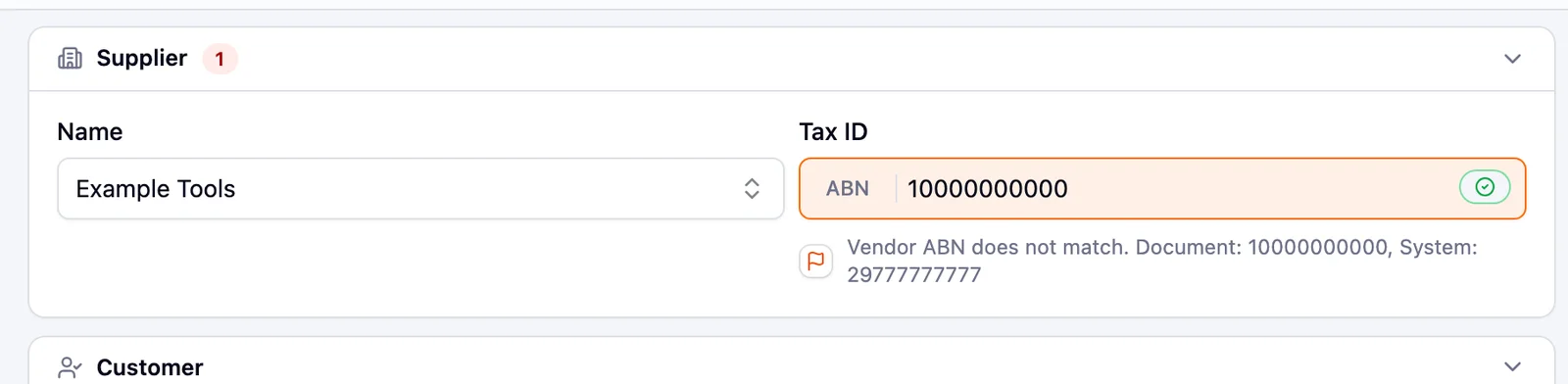
“Vendor ABN does not match. Document: X, System: Y”
ErrorThe ABN on the invoice is different from the one on the supplier's contact. What to do: Check you picked the right supplier. If the supplier has a new ABN, confirm it with them and update the contact.
Clears when fixed
“Tax ID is missing from the document”
ErrorThere's no ABN on the invoice. The message may end with the ABN saved on the supplier's contact. What to do: Ask the supplier for a valid tax invoice. Without an ABN you may need to withhold tax.
Clears when fixed
“ABN is invalid”
ErrorThe ABN is badly formed or the Australian Business Register doesn't show it as active. What to do: Compare it with the document in case it was misread. If the invoice is wrong, ask the supplier for a corrected one.
Clears when fixed
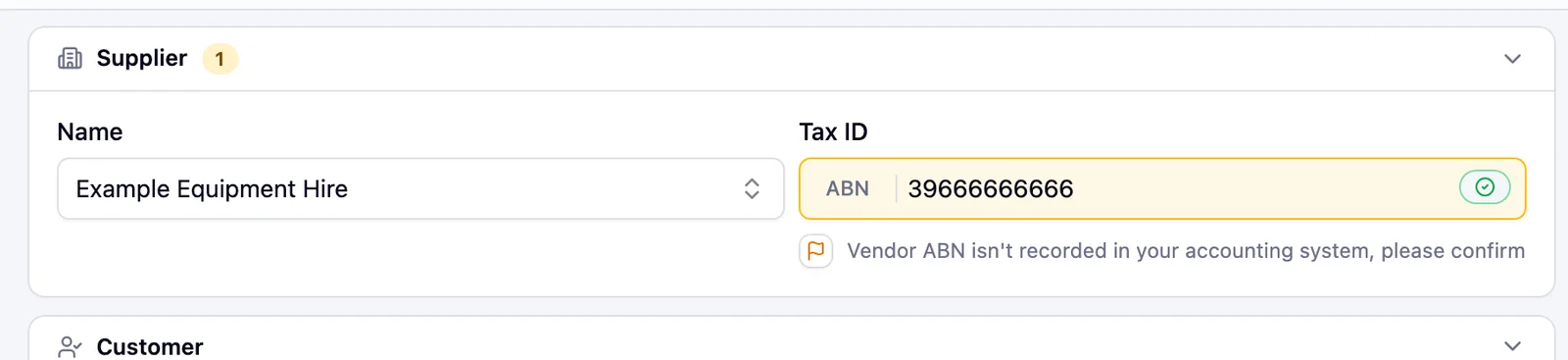
“Vendor ABN isn't recorded in your accounting system, please confirm”
WarningThe invoice has an ABN but the supplier's contact in Xero or MYOB doesn't. What to do: Add the ABN to the contact. Future invoices can then be checked against it.
Clears when fixed
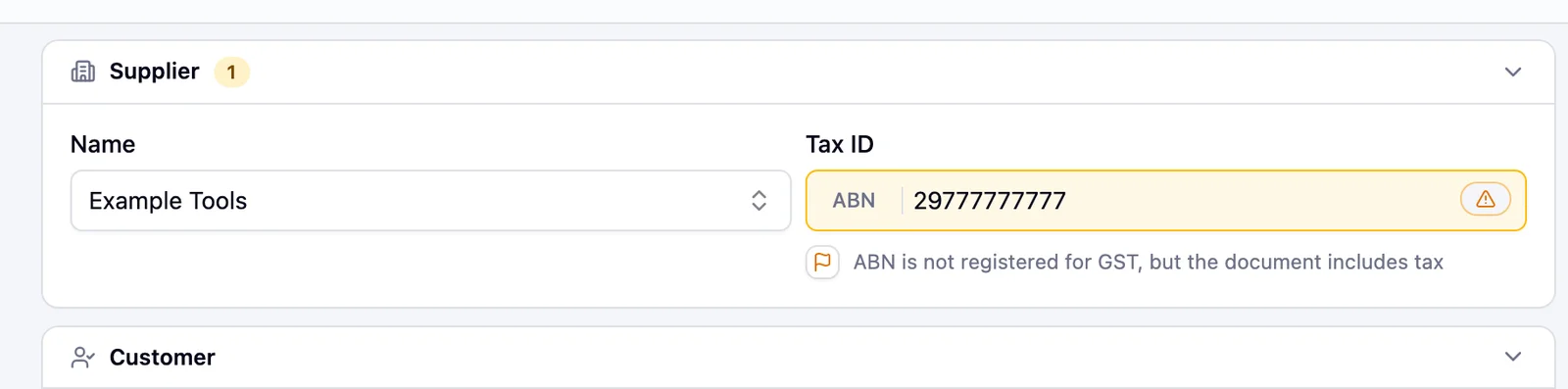
“ABN is not registered for GST, but the document includes tax”
WarningThe supplier charged GST without being registered for it. What to do: Don't claim the GST. Ask the supplier for a corrected invoice.
Clears when fixed
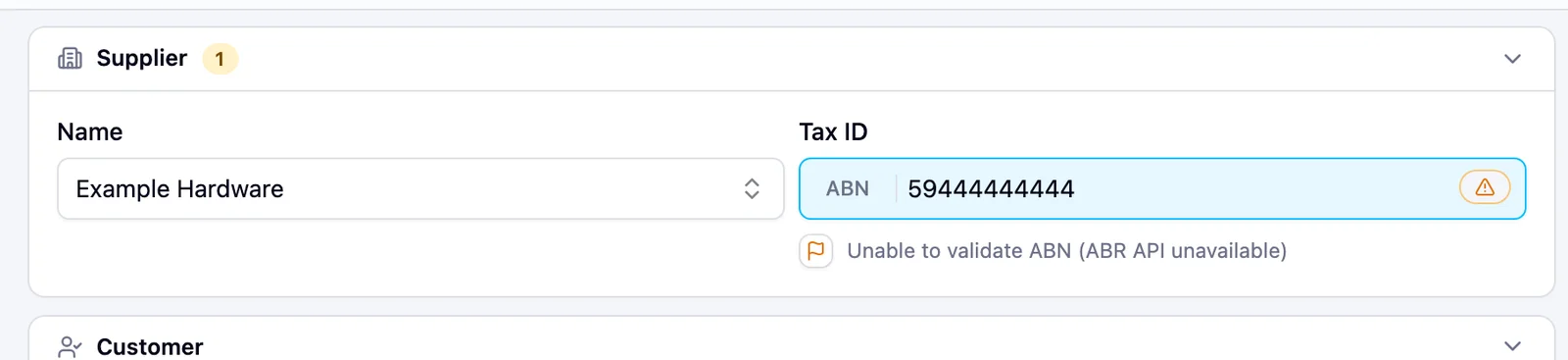
“Unable to validate ABN (ABR API unavailable)”
WarningThe Australian Business Register didn't respond. The ABN couldn't be checked. What to do: Try again later. Any change you save on the invoice runs the check again.
Clears when fixed
Bank details
“BSB / routing code differs from {supplier}'s details in your accounting system ({BSB})”
ErrorThe BSB on the invoice isn't the one saved for this supplier. What to do: Call the supplier on a number you already have and confirm before paying.
Clears when fixed
“Account number differs from {supplier}'s details in your accounting system ({account number})”
ErrorThe account number on the invoice isn't the one saved for this supplier. What to do: As above. Treat it as possible fraud until confirmed.
Clears when fixed
Dates and numbers
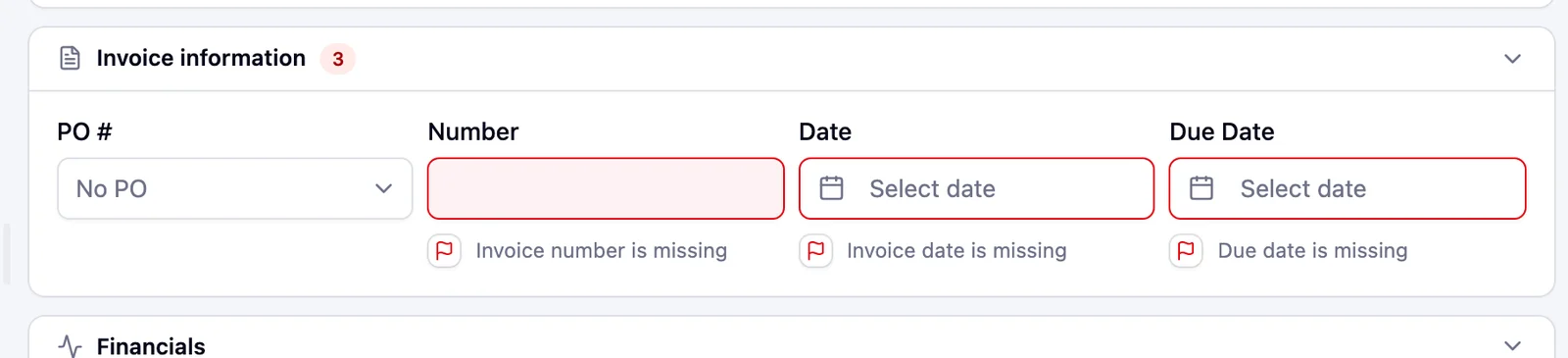
“Invoice date is missing”
ErrorPulsify couldn't find a date. The invoice is marked Needs fix. What to do: Type the date in from the document.
Clears when fixed
“Due date is missing”
ErrorPulsify couldn't find a due date. The invoice is marked Needs fix. What to do: Type it in, or work it out from the supplier's payment terms.
Clears when fixed
“Invoice number is missing”
ErrorPulsify couldn't find an invoice number. What to do: Type it in. Without it, duplicate checks can't work.
Clears when fixed
“This document may be a duplicate of an existing document”
ErrorAnother invoice has the same number and the same supplier, date or ABN. The amount isn't used. What to do: Open the match and compare. Archive or reject the copy, or dismiss the warning if it's genuinely different.
Dismiss with the flag

Totals, tax and customer
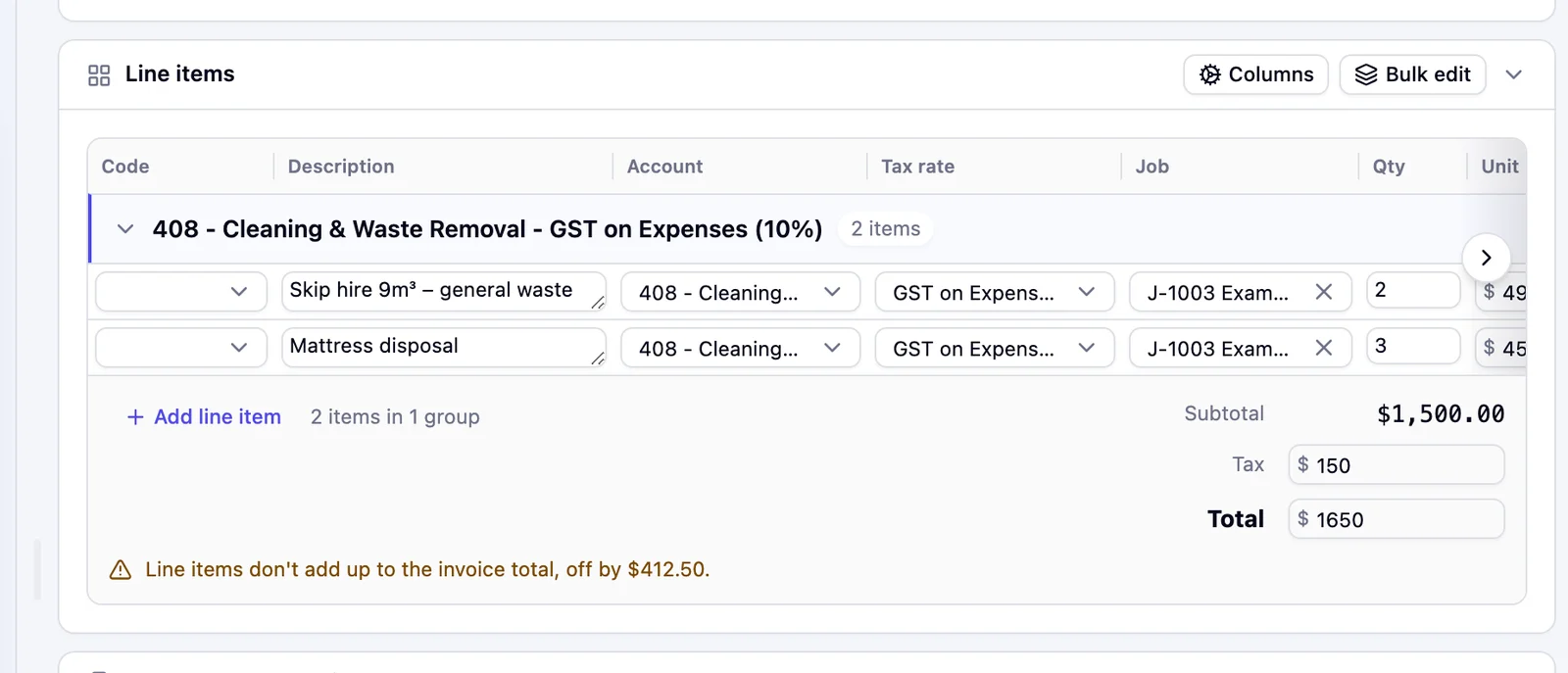
“Line items don't add up to the invoice total, off by $X.”
NoteThe lines add up to a different amount from the invoice total. What to do: Look for a missed line, often freight or a surcharge, or a misread quantity. You can't approve until the lines add up.
Clears when fixed
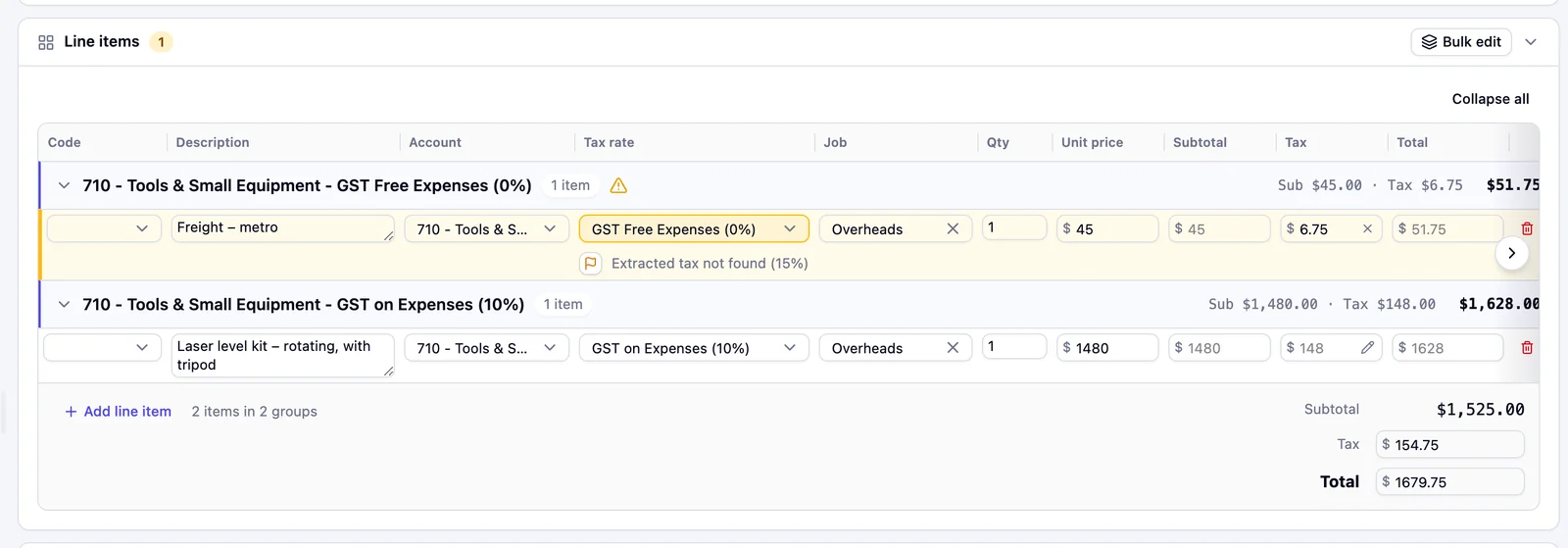
“Extracted tax not found (X%)”
WarningThe tax rate on a line doesn't match any tax code in your accounting software. What to do: Pick the right tax code for the line, then dismiss the warning.
Dismiss with the flag
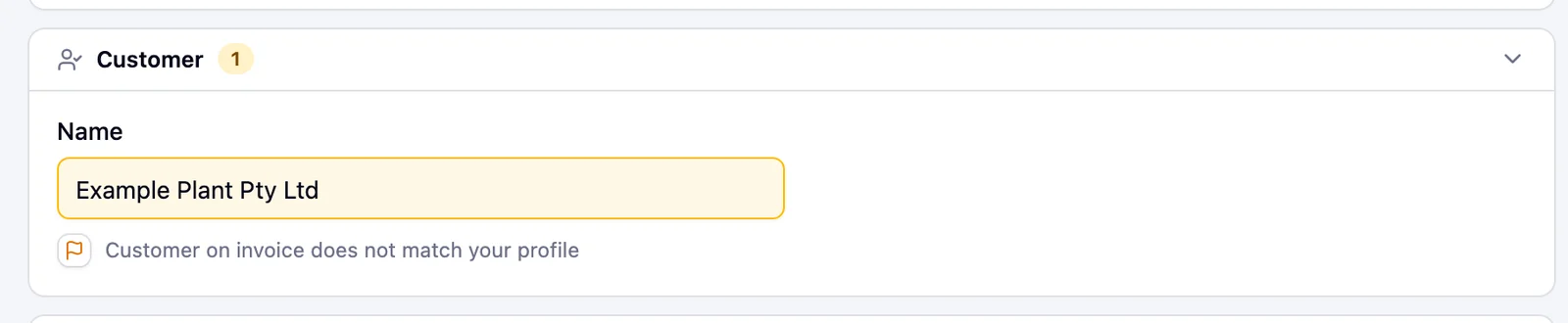
“Customer on invoice does not match your profile”
WarningThe invoice looks addressed to a different business. What to do: If it's for another company, move or reject it. If it's just a different spelling of your name, dismiss the warning.
Dismiss with the flag
“This account was archived. Pick a different account before approving.”
NoteThe account on this line was archived in Xero or MYOB. What to do: Pick an active account. You can't approve until you do.
Clears when fixed
Credit notes
Pulsify calls credit notes adjustment notes on screen.
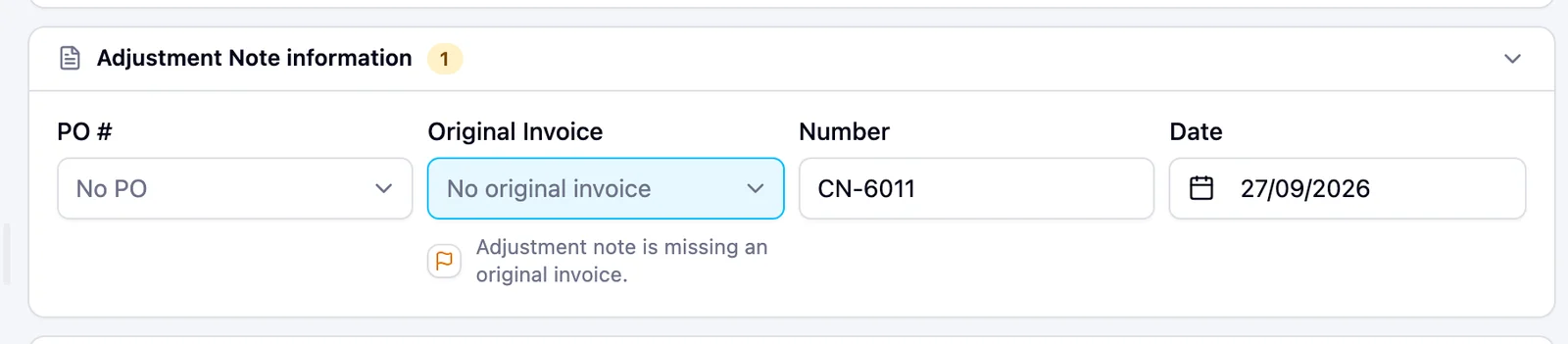
“Adjustment note is missing an original invoice.”
WarningThe credit note doesn't say which invoice it reduces. What to do: Pick the original invoice if you know it.
Clears when fixed
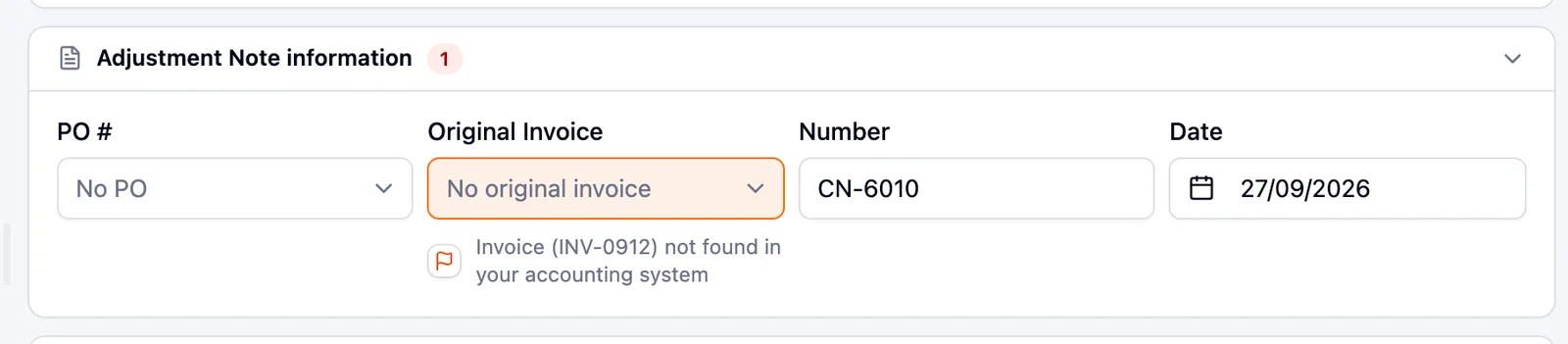
“Invoice ({number}) not found in your accounting system”
ErrorThe credit note names an invoice that isn't in Xero or MYOB. What to do: Check the number. The original may not have been entered yet.
Clears when fixed
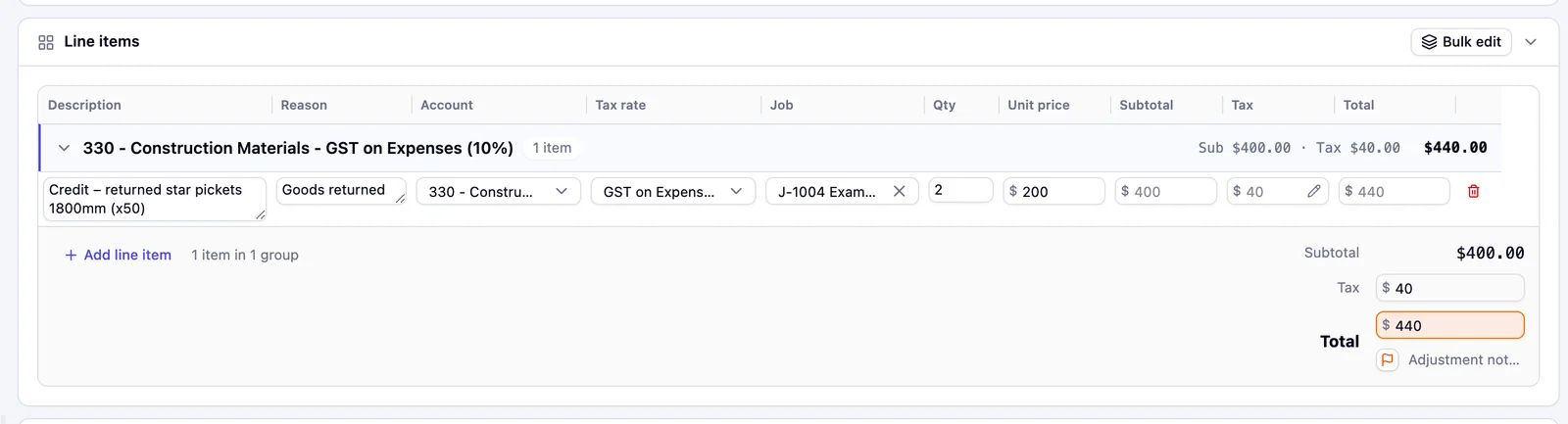
“Adjustment note total exceeds the original invoice total.”
ErrorThe credit is bigger than the invoice it's against. What to do: Check both amounts with the supplier before approving.
Dismiss with the flag
Purchase orders
PO checks only run if your company has purchase orders in Xero or MYOB and PO checks are turned on. They don't change an invoice's status. On MYOB a supplier mismatch can also block Approve. Description differences show even with PO checks off. See Match invoices to POs for screenshots of each.
“PO number is missing”
WarningNo PO is linked and none is printed on the invoice. What to do: Pick the PO from the PO # list, or ignore it if this supplier doesn't need one.
Clears when fixed
“PO ({number}) not found in your accounting system”
WarningThe invoice quotes a PO number that isn't in Xero or MYOB. What to do: Check the number with the person who ordered.
Clears when fixed
“Matched {number}, but it belongs to {supplier}, not this bill's supplier.”
WarningThe PO exists but was raised to a different supplier. This shows on MYOB, which won't accept the PO on this bill. If you pick the PO yourself, the message reads "This purchase order belongs to {supplier}, not this bill's supplier." What to do: Pick the right PO or the right supplier.
Clears when fixed
“Matched {number}, but it is closed, so it can't be linked to this bill.”
WarningThe invoice quotes a PO that is closed in Xero or MYOB. What to do: Check whether the PO should be reopened or the supplier quoted the wrong number.
Clears when fixed
“Not on the purchase order. Nothing on this order covers it.”
WarningA line on the invoice isn't on the linked PO. What to do: Pick its line in the PO line column. If the extra was agreed, you can still approve.
Clears when fixed
“Exceeds PO by {amount}”
WarningMore has been billed than the PO line ordered, counting earlier approved invoices. A line billed for fewer units isn't flagged. What to do: Check what was delivered before approving.
Clears when fixed
“PO price is $X each”
WarningThe price billed is different from the PO price. What to do: Check the price with the supplier or the person who ordered.
Clears when fixed
“Description can't be matched to PO”
WarningThe item on the invoice looks like a different item from the one ordered. What to do: Check it's the right item. Dismiss the warning if it is.
Dismiss with the flag
“Line balances are incomplete: {amount} from earlier approved invoices has no PO-line match.”
WarningEarlier approved invoices were billed against this PO without being matched to its lines. The line balances may be out. What to do: Check the balances against the PO before approving.

Price lists and email
“Price list: $X each”
WarningThe unit price is different from the supplier's price list. On tax-inclusive bills the message ends "ex tax". What to do: Check the price with the supplier. This one can't be dismissed.
“Not in price list”
NoteThis line isn't on the supplier's price list. What to do: Nothing, unless you expected it to be listed.
“We could not verify this email came from the sender it claims to be from.”
NoteThe email failed the checks that prove who sent it. It may be spoofed. What to do: Confirm with the supplier on a number you already have.
Only Needs fix problems and the few others the Approve button lists, like line items that don't add up to the total, stop you approving. Everything else is there to help you decide.
Common questions
Can I approve an invoice that has warnings?
Yes, unless it's marked Needs fix. Needs fix means something the accounting software requires is missing, like the supplier or the date. The Approve button lists what to fix first. For a possible duplicate, Pulsify asks you to confirm before it approves.
Where does Pulsify get the bank details it compares against?
From the supplier's contact in Xero or MYOB. Keep those details up to date and the check stays accurate.
What does Failed mean in the queue?
Pulsify tried to send the approved invoice to Xero or MYOB and it was refused, for example because the connection was lost. Open the invoice to see why, fix it and approve again.
Can I turn the PO checks off?
Yes. Go to Settings, General for your company and turn off PO checks. Your POs and PO links are kept, and the warnings come back if you turn it on again.
Stuck on something?
Book a call and we'll set it up with you.