
Before you start
- Get the supplier's price list as a CSV. A spreadsheet exported as CSV works.
- Prices must be without GST. Upload one list per supplier, up to 10,000 items.
- You need to be a company Admin, Approver or Reviewer to upload lists.
1 Open Price Lists
Click Database in the sidebar and open the Price Lists tab. Each supplier with a list gets its own tab, showing how many items it has, when it was uploaded and the supplier's ABN.
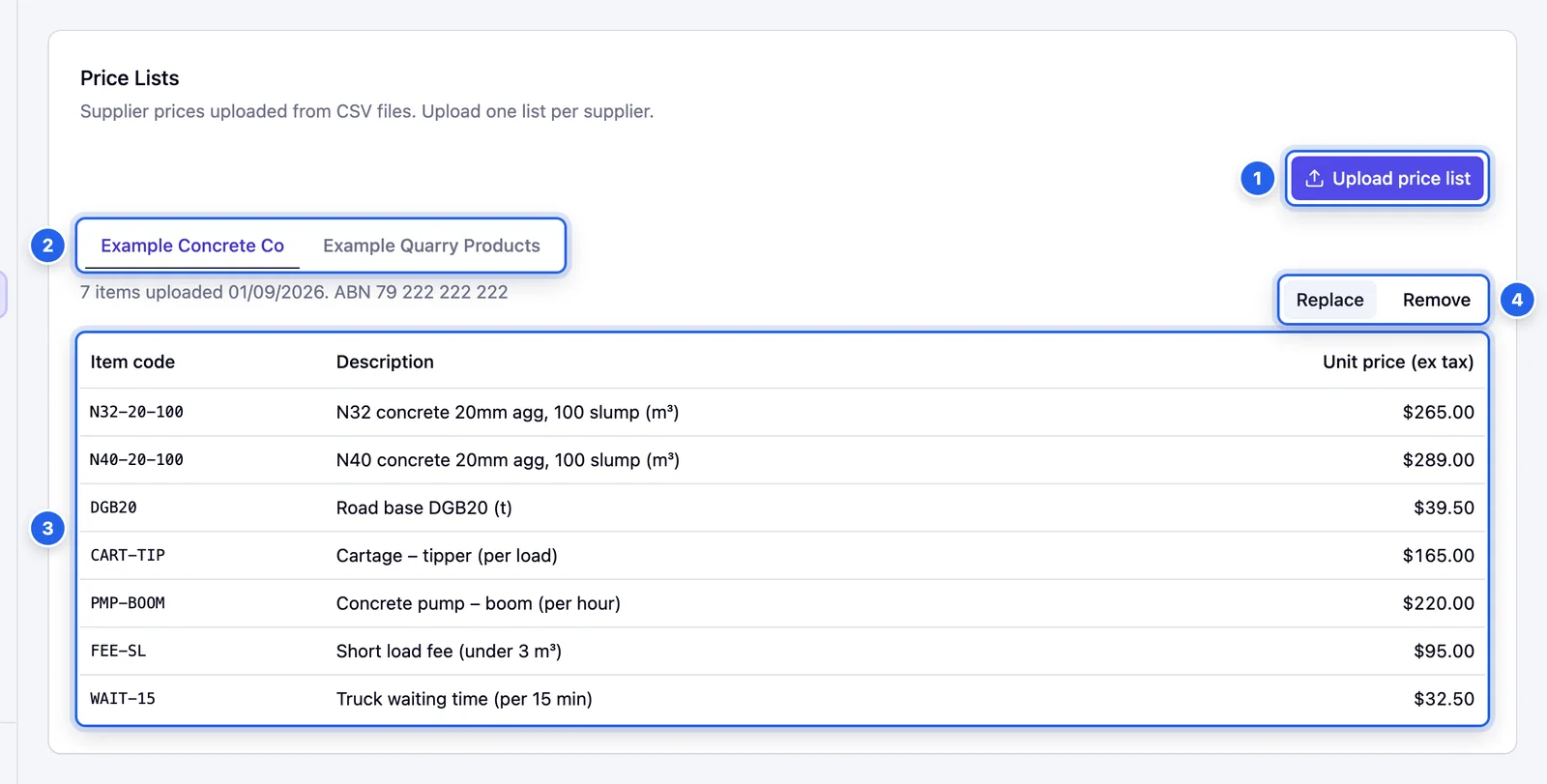
- 1 Upload price list
- 2 One tab per supplier with a list.
- 3 The items on the selected supplier's list.
- 4 Replace or Remove the list.
2 Upload the CSV
Click Upload price list. Choose the Supplier and the CSV file. Your file needs a column for the item code, the description and the unit price. Each row needs a price and at least a code or a description. If you're building it from scratch, click Download template.
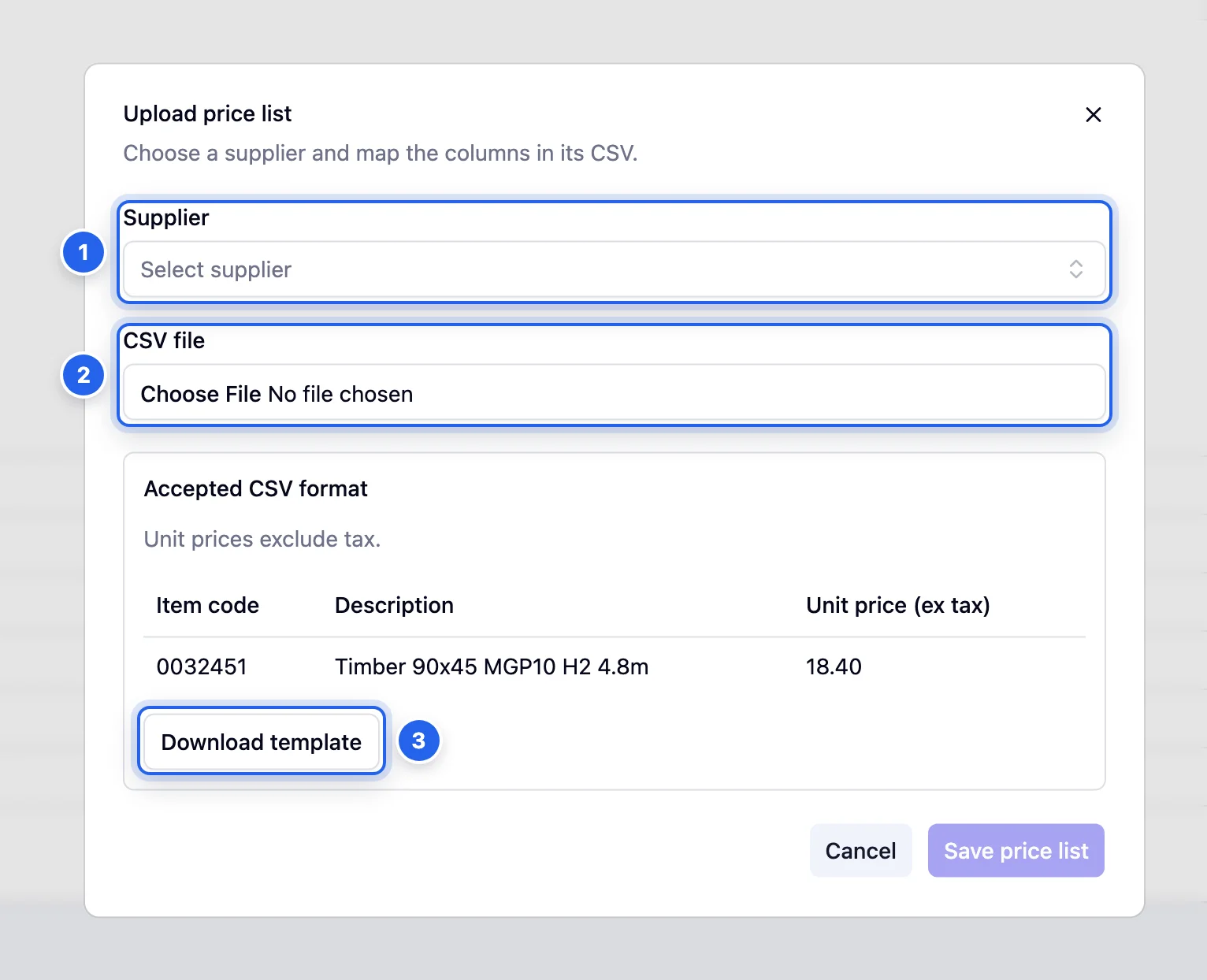
- 1 Supplier the list belongs to.
- 2 CSV file
- 3 Download template for a file in the right format.
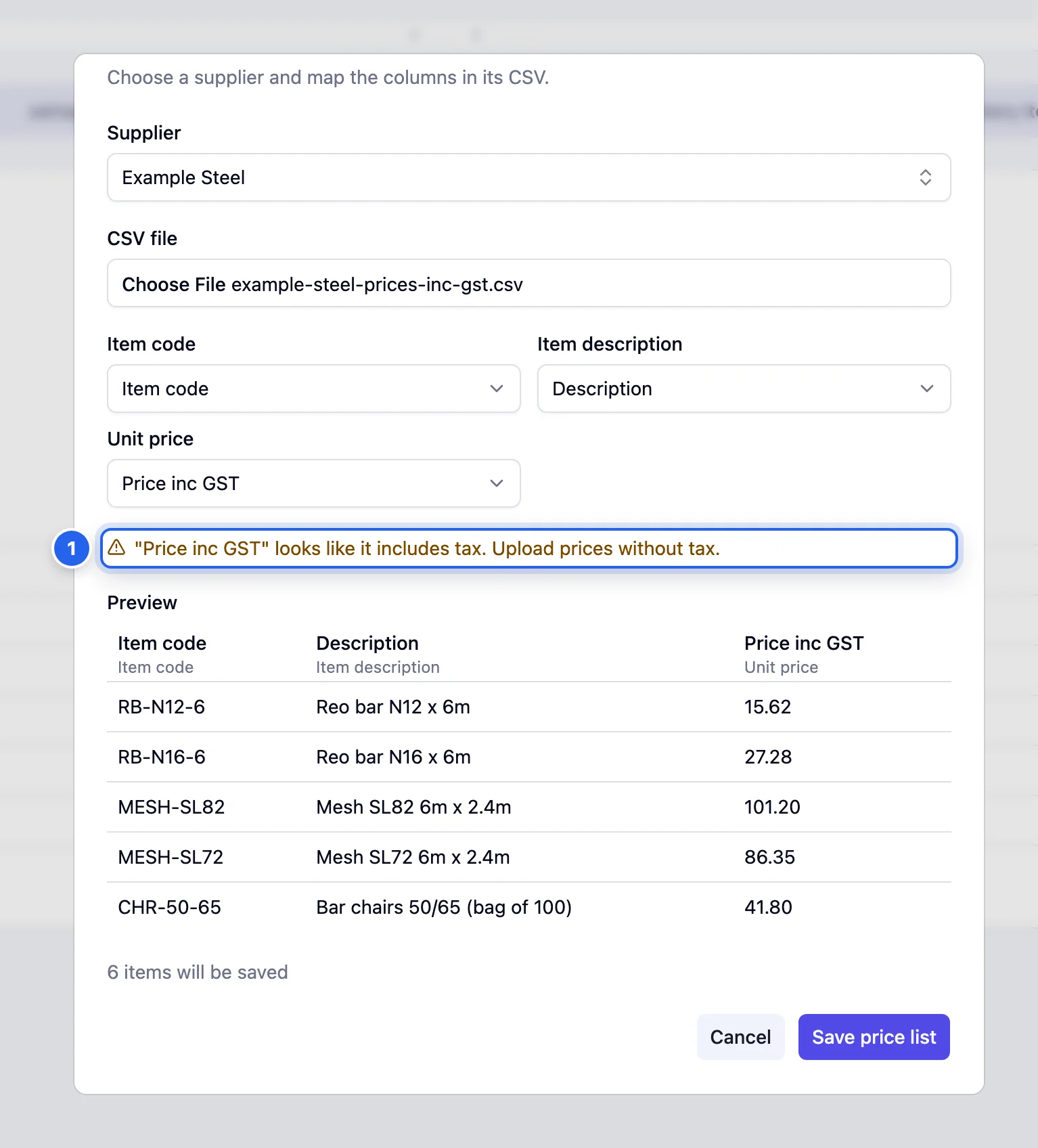
3 Match the columns and save
Pulsify shows the columns in your file. Pick which one holds the Item code, the Item description and the Unit price. Check the preview, then click Save price list.
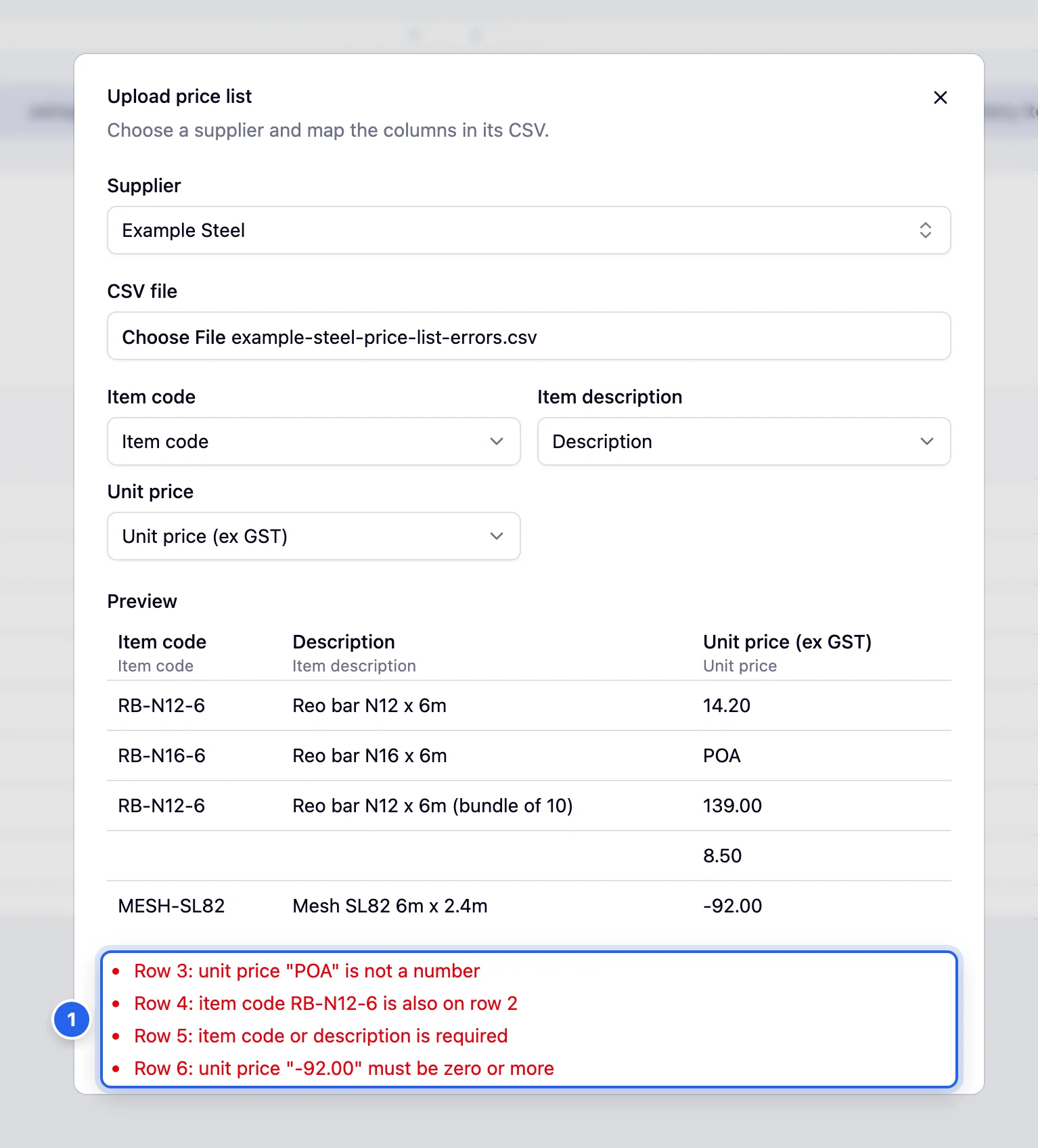
Pulsify won't save a file with problems. It lists each bad row. Fix it in your spreadsheet and upload again:
- A price that isn't a number, like "POA".
- A price below zero.
- An item code that appears twice.
- A row with neither a code nor a description.
If a price column's name suggests it includes GST, you'll see a warning. Use prices without tax.
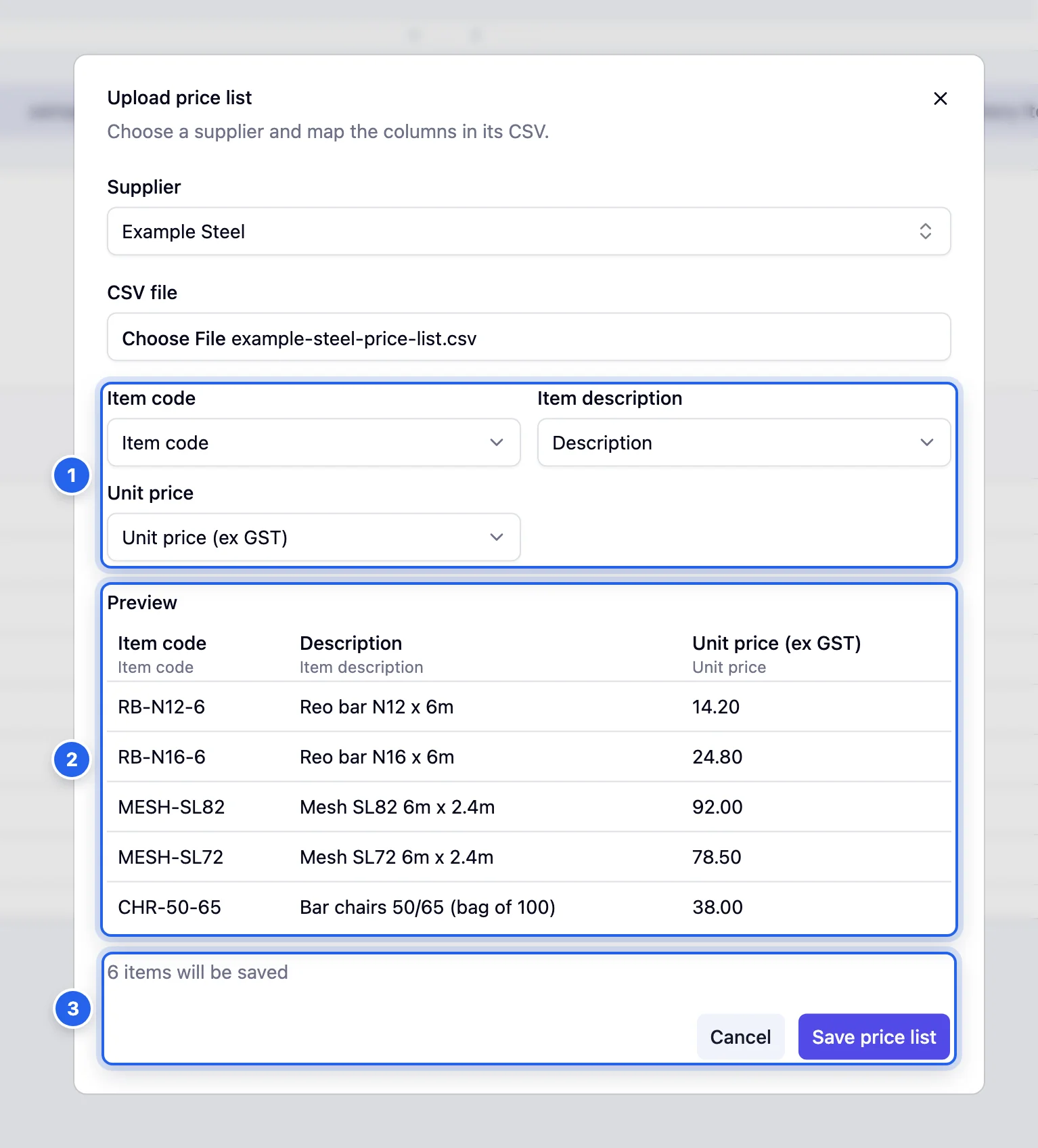
- 1 Which column holds the item code, description and unit price.
- 2 A preview of the first rows.
- 3 How many items will be saved.
4 Check invoices against it
From now on, invoice lines from that supplier are checked against the list. Once your company has a price list, a Code column appears on invoice line items. If the supplier has a list, you can pick the item code from it.
- A line billed at the list price shows nothing.
- A line at a different price shows Price list: $X each in amber, and counts as a warning. On a tax-inclusive invoice it reads Price list: $X each ex tax.
- A line that isn't on the list shows a grey Not in price list note.
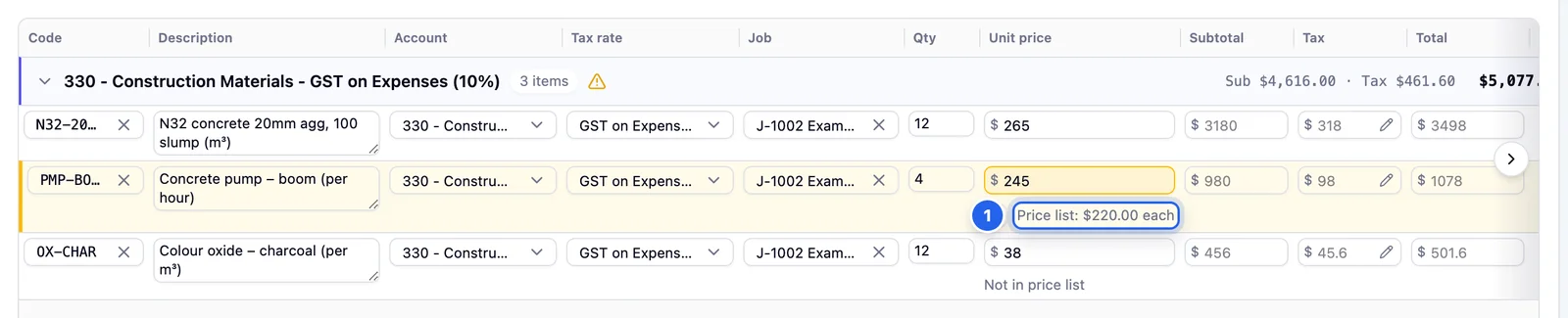
- 1 The price on the list, shown because this line was billed at a different price.
Updating or removing a list
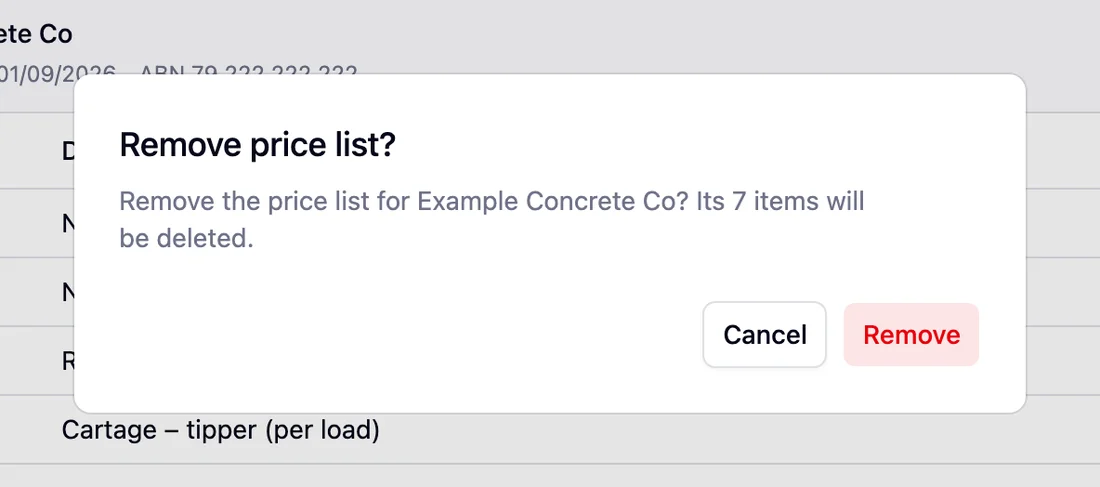
When prices change, open the supplier's tab and click Replace. Choose the new file, match the columns and click Replace price list. The new file replaces the whole list. To stop checking a supplier's prices, click Remove.
Common questions
Should prices include GST?
No. Upload prices without tax. Pulsify takes the tax off tax-inclusive invoice lines before comparing. A tax-inclusive line with no tax code isn't checked.
Is there any tolerance?
No. Both prices are rounded to the cent and any difference is flagged, higher or lower.
Does a price difference stop approval?
No. It's a warning to check with the supplier. It doesn't change the invoice's status.
What happens when I upload a new list for the same supplier?
It replaces the old one. Pulsify checks prices fresh every time you open an invoice. Older invoices are compared against the new list too.
How does Pulsify know which list to use?
It matches the supplier's ABN first. Only if the invoice or the supplier has no ABN does it fall back to the supplier the invoice is linked to. A different ABN means no list is used. For each line it looks for the item code first. Then it looks for the same description. Case and extra spaces are ignored.
Stuck on something?
Book a call and we'll set it up with you.