
Which role to give
Every person has an organisation role and a role in each company they can use.
| Company role | What they can do | Good for |
|---|---|---|
| Admin | Everything: all documents, approval workflows, integrations and company settings. | Owners, finance managers |
| Approver | Review and approve invoices on the workflow steps they're part of. | Project and operations managers |
| Reviewer | Check and edit invoices but never approve them. With the Approval Workflows Add-on, a Reviewer works on the review steps they are part of. | Bookkeepers, AP staff |
| Submitter | Upload documents and see only what they uploaded. | Site staff, anyone sending receipts |
The organisation role sits above that. An organisation Admin is an Admin in every company and can invite people. Staff only get the companies and roles you give them.
1 Open Members
Go to Settings and open Members. You'll see everyone in your organisation and their role, with invites that haven't been accepted yet under Pending invitations. Click Invite member.
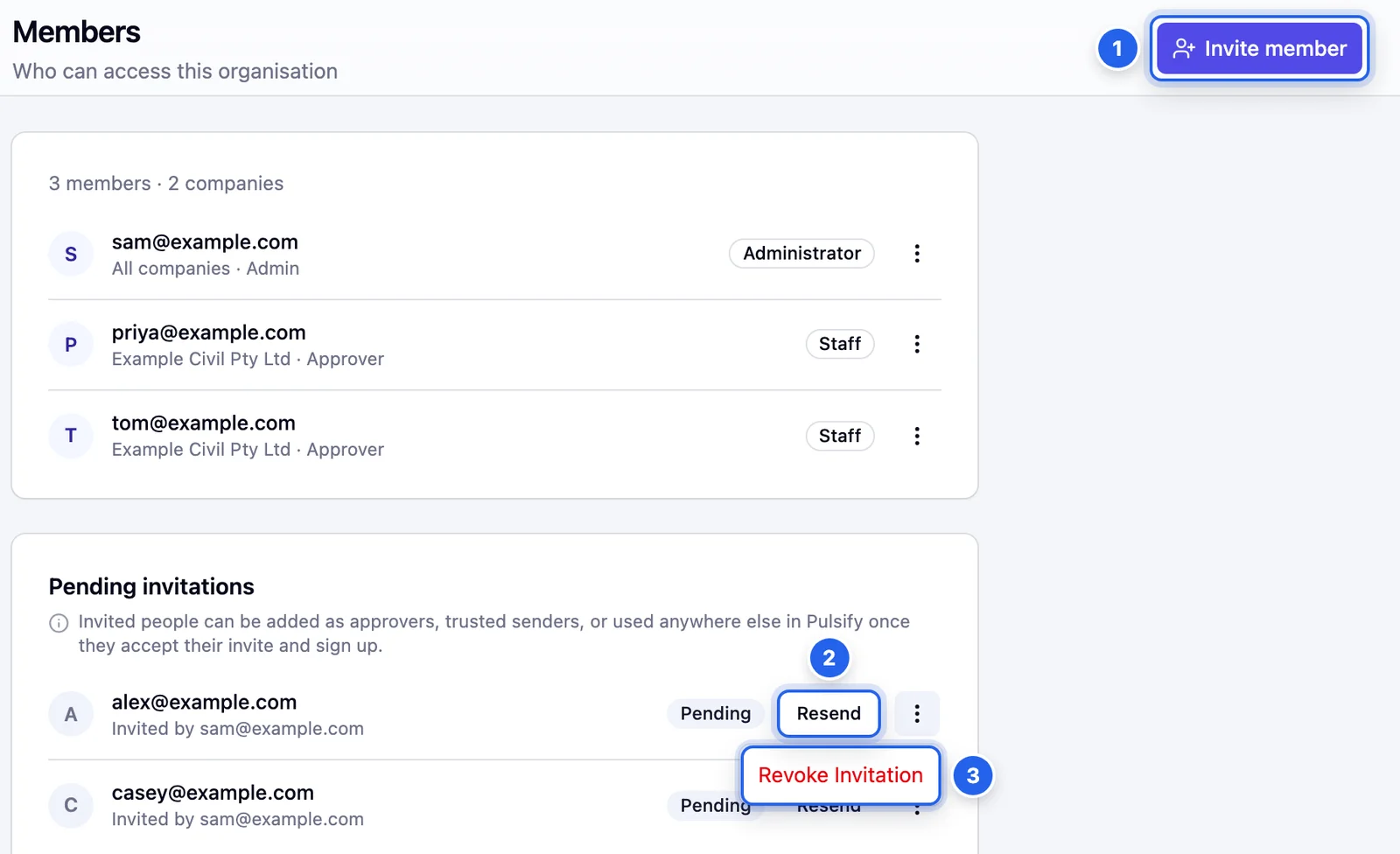
- 1 Invite member
- 2 Resend sends a pending invite again.
- 3 Revoke Invitation cancels an invite that hasn't been accepted.
2 Send the invite
Enter their email and choose their Organisation Role. Admin is selected to start with. For Staff, choose Select Companies, tick each company they need and pick their role in it. Choose All Companies in this Organisation to give them the same role everywhere. Click Send Invitation.
They get an email with a link to sign up. Someone who already has a Pulsify account is added straight away. You can add new people to approval workflows once they've accepted.
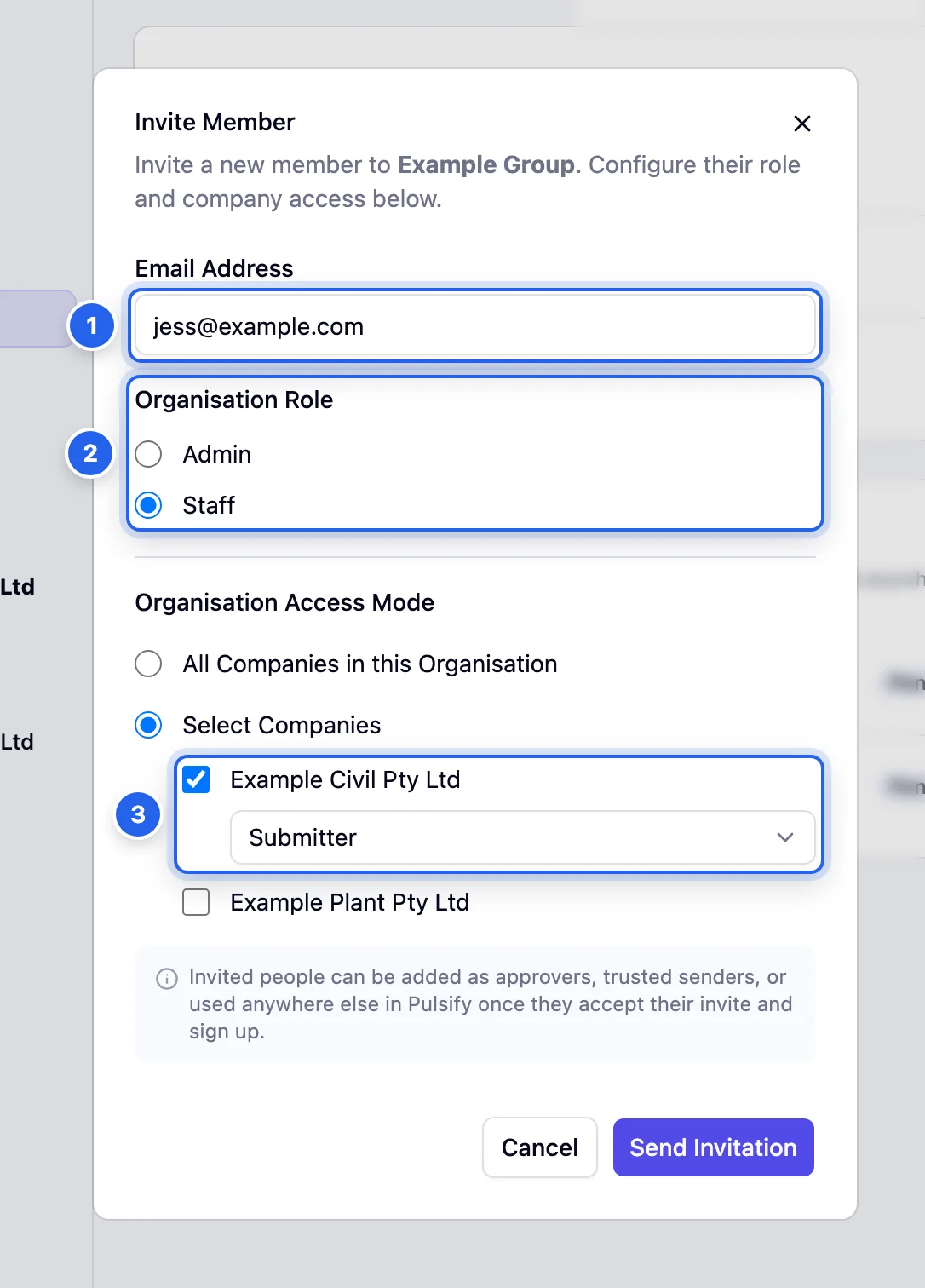
- 1 Email Address of the person you are inviting.
- 2 Organisation Role. Admin or Staff.
- 3 The companies they can use and their role in each.
3 Change access later
To change someone's role or companies, open the menu next to their name on the Members page and choose Manage Access. Make your changes and click Update Access.
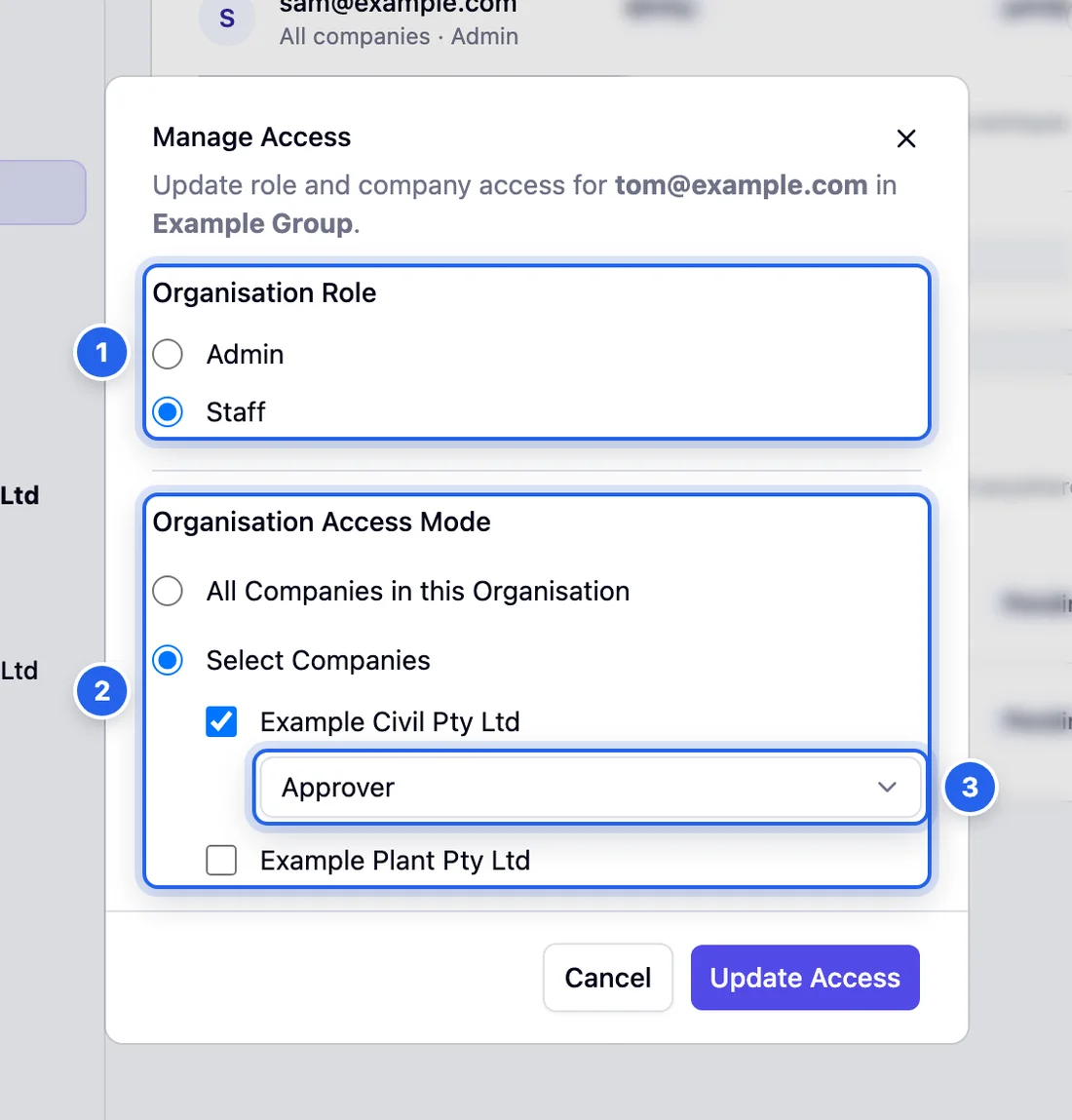
- 1 Organisation role.
- 2 Which companies they can use.
- 3 Their role in each company.
Next step
Once your approvers have accepted, set up approval workflows. Each invoice then goes to the right person.
Common questions
Someone didn't get their invite. What do I do?
Ask them to check their spam folder, then click Resend next to their name under Pending invitations. Check the email address while you are there.
Can I add someone as an approver before they accept?
No. People can be added as approvers or trusted senders once they accept their invite and sign up.
Who can invite people?
Organisation Admins. If you can't see Members in Settings, ask an Admin to invite the person for you.
How do I remove someone?
Open the menu next to their name on the Members page and choose Remove Member. Pulsify won't remove the last Admin of a company. Make someone else an Admin there first. For an invite that hasn't been accepted yet, choose Revoke Invitation.
Stuck on something?
Book a call and we'll set it up with you.