
Before you start
- This works with Microsoft 365 mailboxes.
- You need to be an organisation Admin, or have the Manage inboxes right.
- Your IT administrator may need to approve Pulsify in Microsoft first. Pulsify gives you a link to send them.
1 Open Email inboxes
Go to Settings and open Email inboxes. Click Connect an inbox.
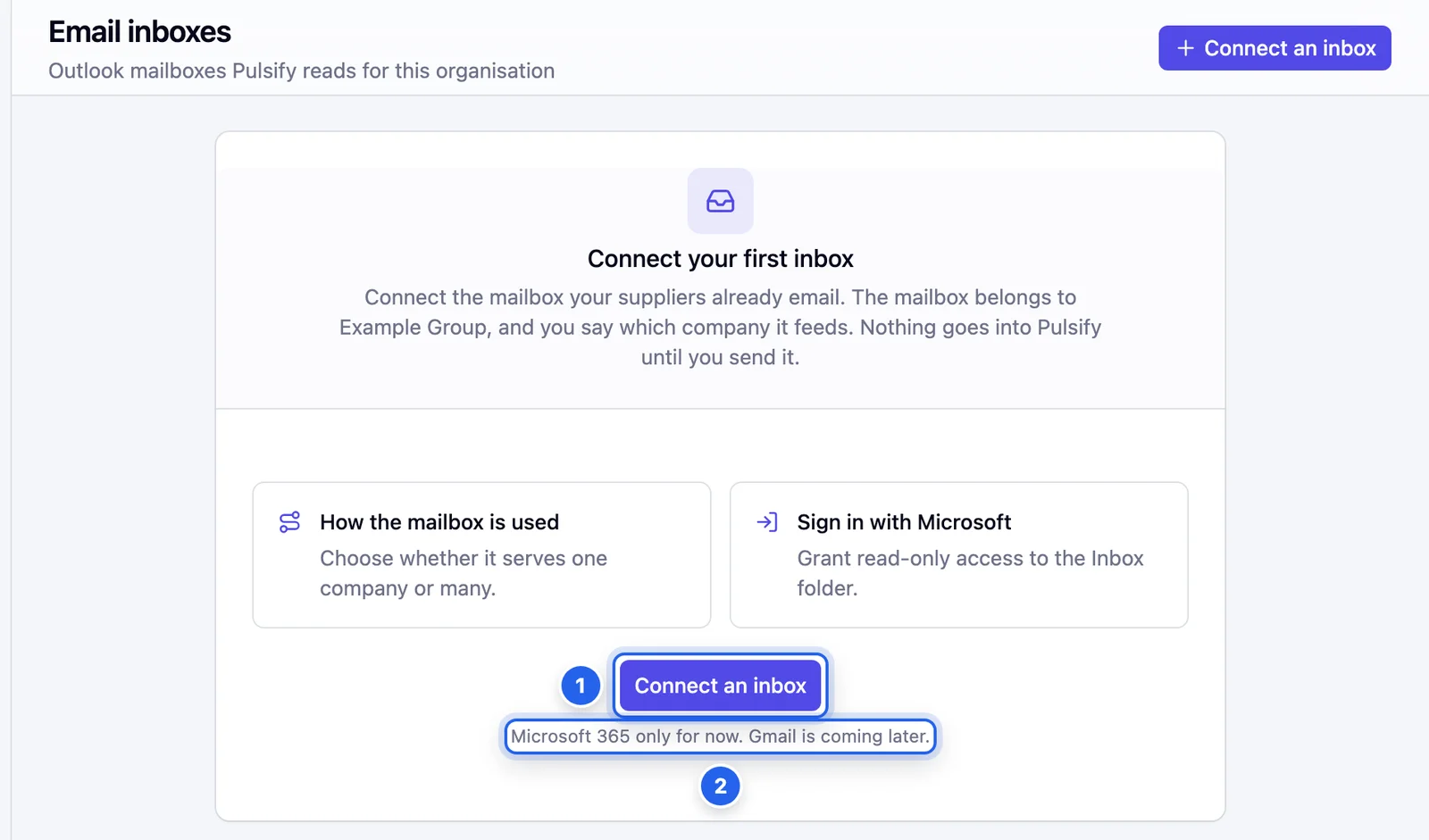
- 1 Connect an inbox
- 2 Microsoft 365 mailboxes only for now.
2 Choose Shared or Direct
- Shared across companies. One mailbox serves several companies, like a group accounts@ address. You pick the company for each email when you send it.
- Direct. The mailbox belongs to one company. Choose which, and every email you send goes there.
Click Next.
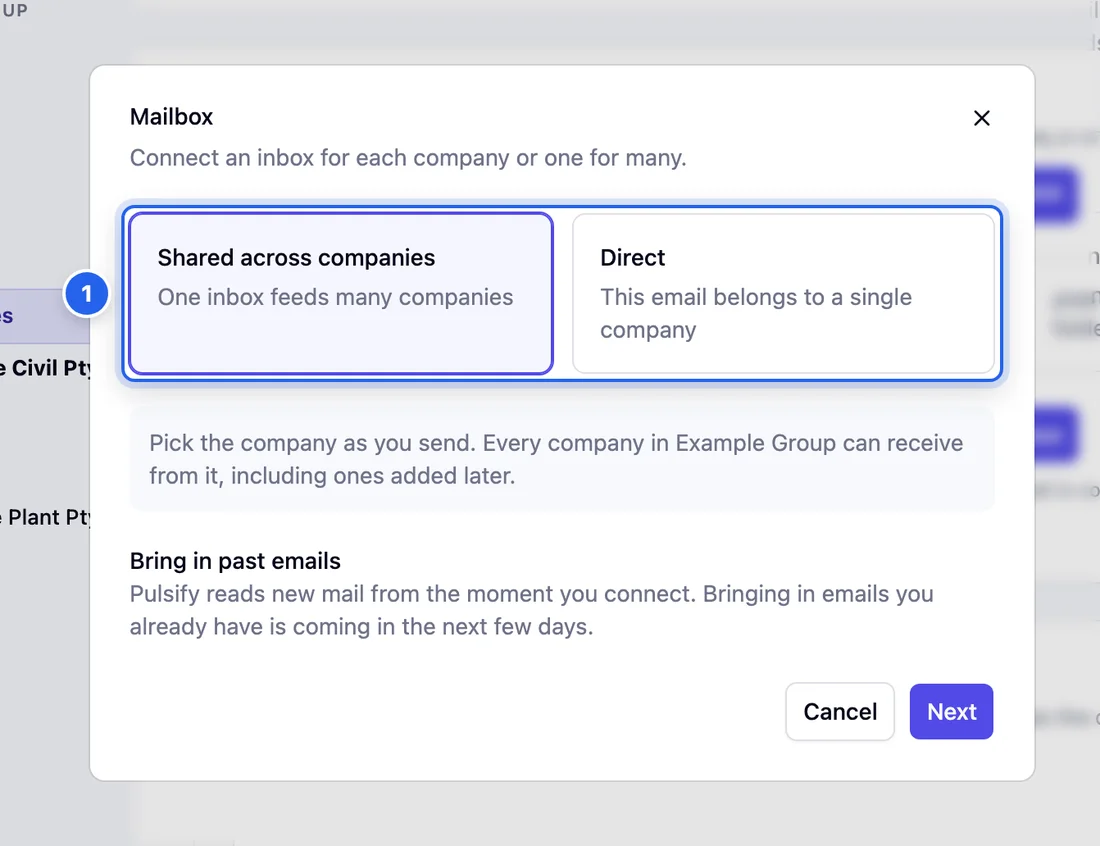
- 1 Shared across companies: one inbox feeds many companies.
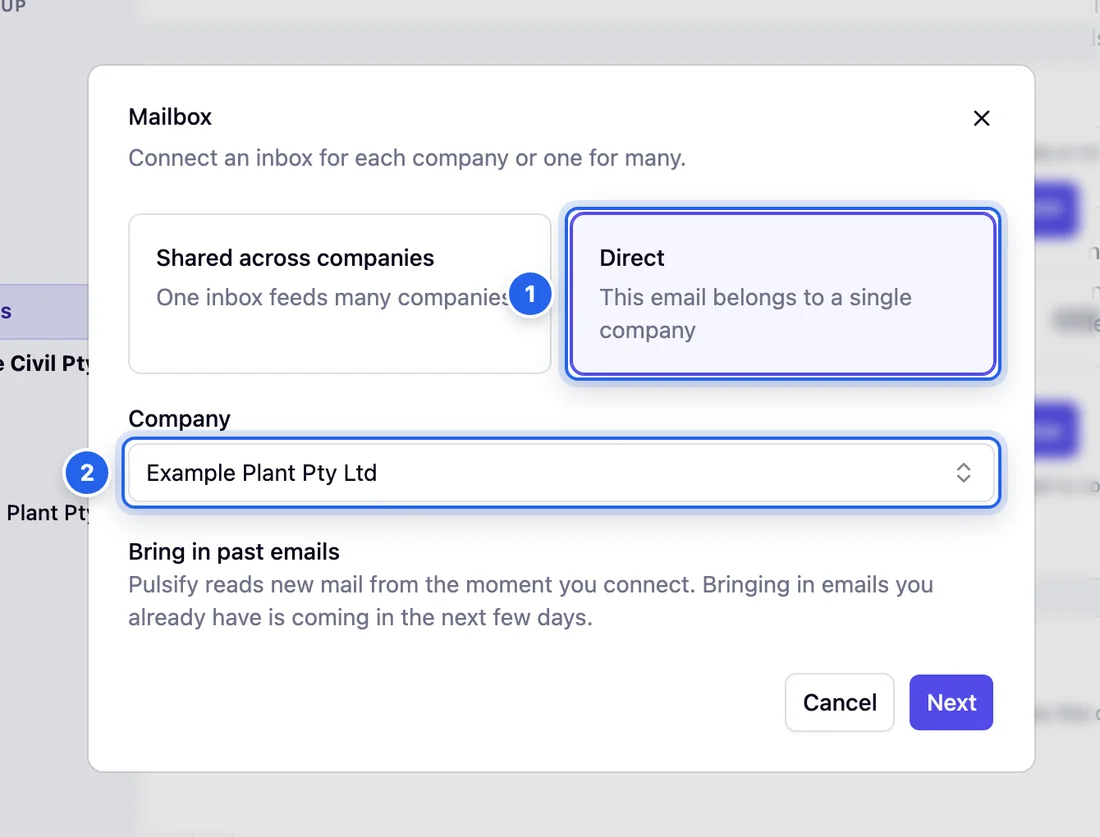
- 1 Direct: this email belongs to a single company.
- 2 The company it belongs to.
3 Sign in with Microsoft
- You sign directly into the invoice inbox. Leave Other inbox address (optional) blank and choose that inbox's account on Microsoft's screen.
- You open a separate invoice inbox through your own Outlook account, like a shared accounts@ mailbox. Enter its address, then sign in with your own work account. Your account must already be able to read that inbox in Outlook.
Click Continue to Microsoft. Pulsify asks Microsoft for read-only access and only reads the Inbox folder. It can't send, delete or change anything.
If your organisation needs an IT administrator to approve new apps, Pulsify shows Your IT administrator needs to approve Pulsify first. Click Copy link and send it to IT. Once they approve, click Try again in the same browser and sign in with the account that can read the inbox. Approving Pulsify doesn't give your account access to another inbox. If you can't open it in Outlook, ask IT for access.
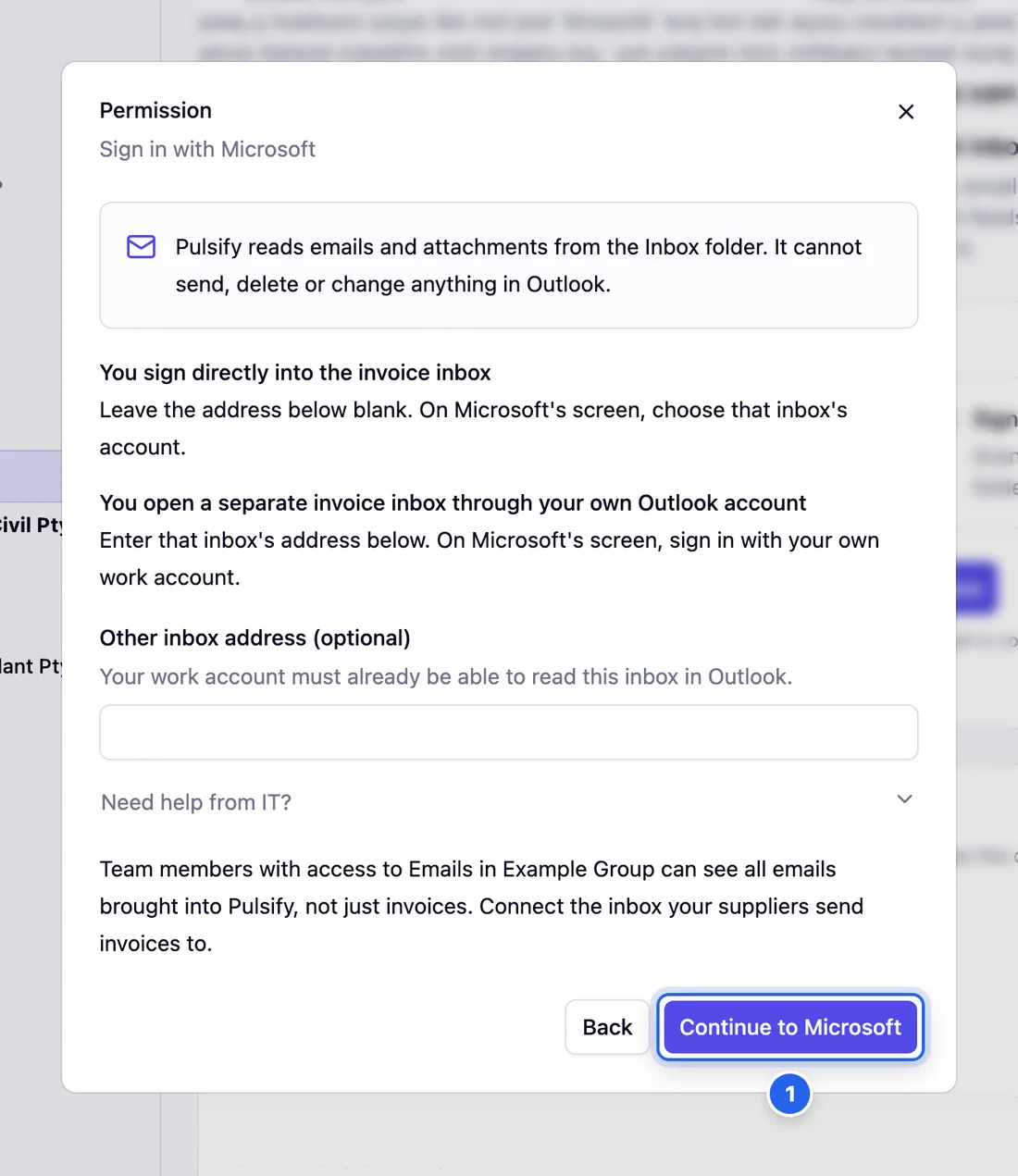
- 1 Continue to Microsoft
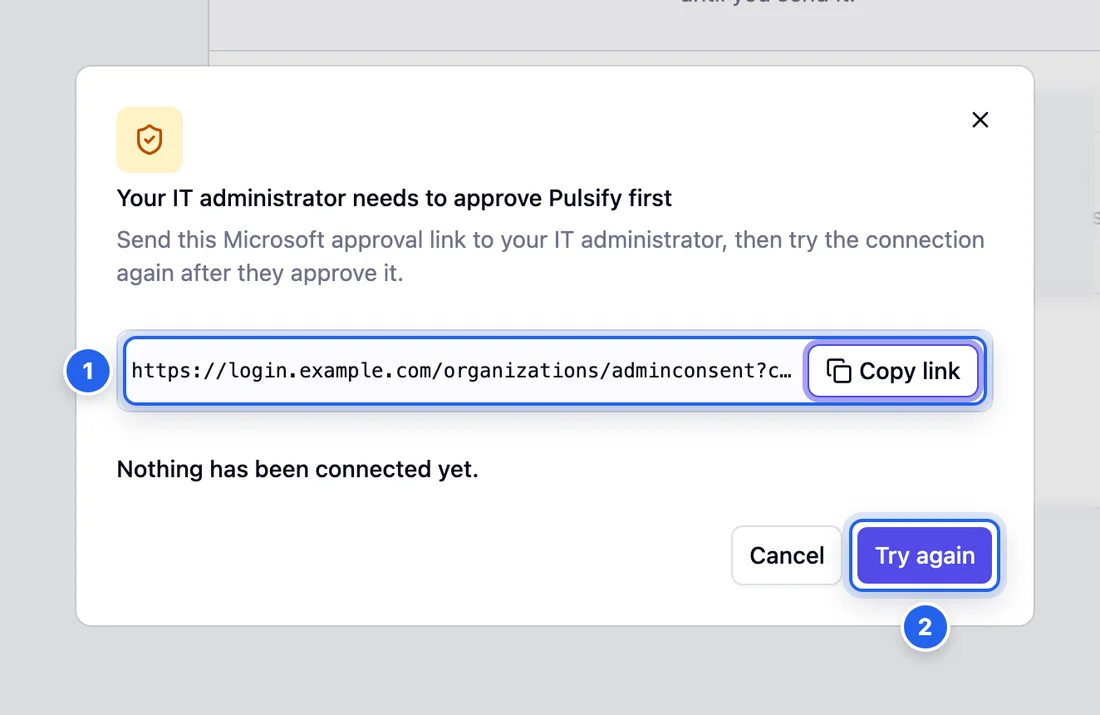
- 1 The approval link to send your IT administrator.
- 2 Try again after they approve.
4 Send emails into Pulsify
Click Emails in the sidebar. New emails wait under Waiting. For each one:
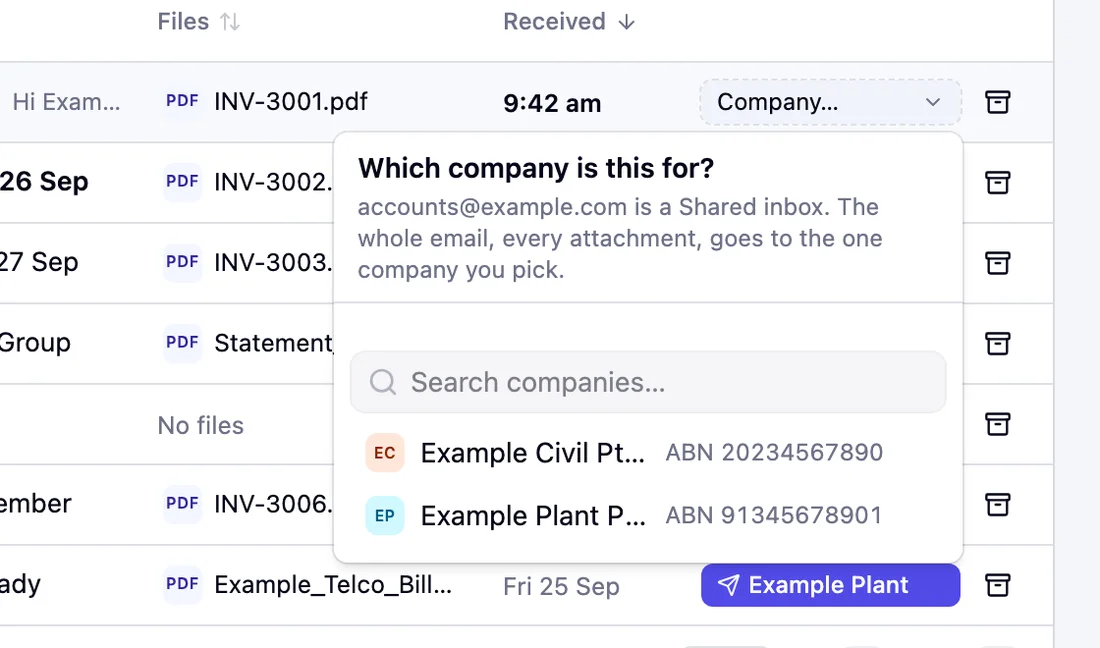
- Send it. From a Direct inbox, click the company button. From a Shared inbox, click Company… and pick the company. Each attachment Pulsify can use becomes a document and is read like any other upload. An email with no file Pulsify can use can't be sent. Dismiss it instead.
- Dismiss it if it isn't for Pulsify. It moves to Dismissed, and you can restore it.
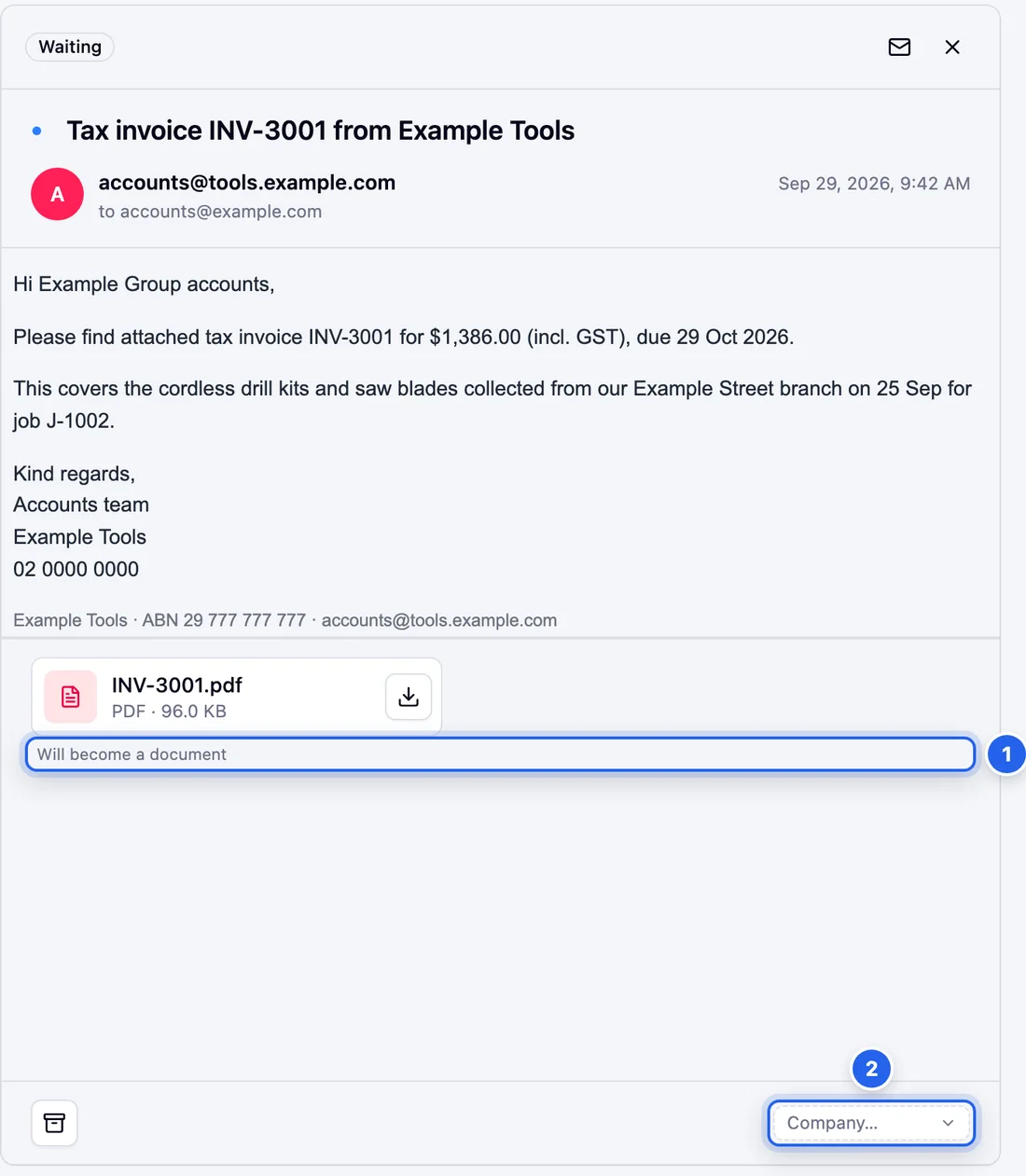
Click an email to read it first. Attachments Pulsify can use are marked Will become a document. Sent emails move to Sent, with a link to each document they created.
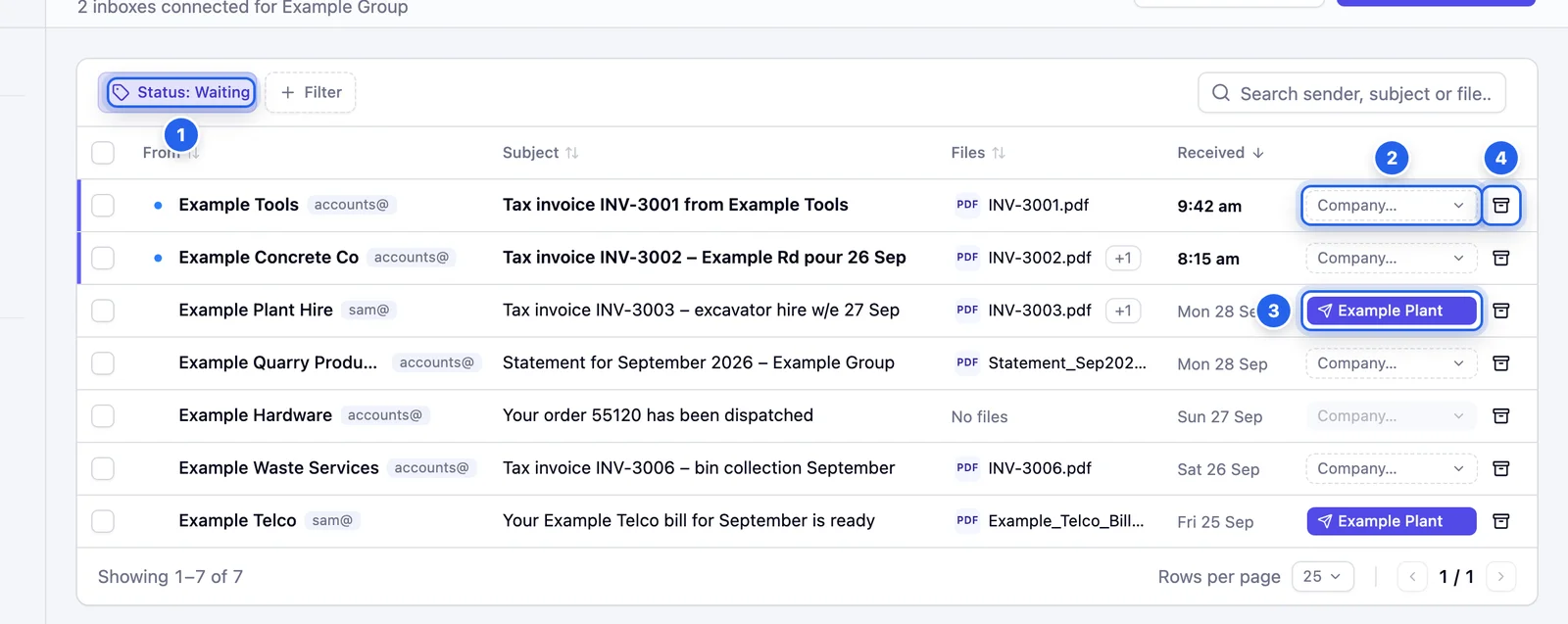
- 1 Who sent it.
- 2 Company… picks the company for an email from a Shared inbox.
- 3 Emails from a Direct inbox show their company. Click it to send.
- 4 Dismiss the email.
Managing inboxes
Every connected inbox is listed in Settings, Email inboxes, with its type and whether it's working. Use the ⋮ menu (More options) to Disconnect one. Pulsify stops reading it. Emails not yet sent leave the Emails page. Everything already sent, and every document it created, stays.
An inbox you open through your own account is checked for new mail every 5 minutes. If you have the Manage inboxes right, click Sync now next to it in Settings or on the Emails page to check straight away.
The same page has Who can use email. Give each person View and send to use the Emails page, or Manage inboxes to connect and disconnect mailboxes. Organisation Admins always have both.
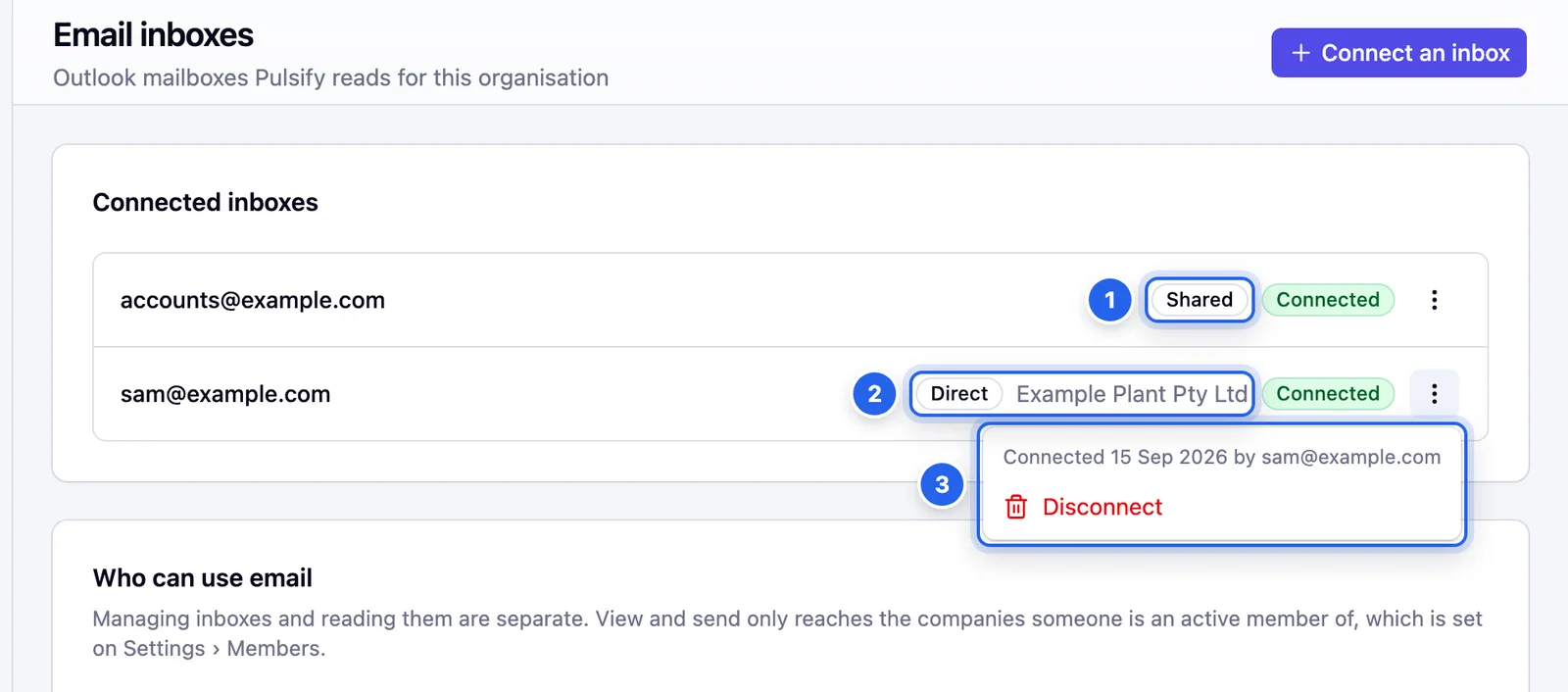
- 1 A Shared inbox.
- 2 A Direct inbox and its company.
- 3 Disconnect
Common questions
Can Pulsify send, delete or move my emails?
No. It only reads the Inbox folder. Nothing changes in Outlook, even when you send or dismiss an email in Pulsify.
Does it work with Gmail?
Not yet. It works with Microsoft 365 mailboxes. Gmail is coming later. Until then, forward emails to your Pulsify address.
Will it bring in emails I already have?
Not yet. Pulsify reads new mail from the moment you connect. Bringing in older emails is coming soon.
How is this different from the forwarding address?
Forwarding sends emails straight to one company's upload address. A connected inbox lets you see what arrived and choose which emails to send, and to which company. That suits a shared accounts@ mailbox that also gets statements, remittances and general mail.
An inbox says Needs reconnecting. What do I do?
Click Reconnect and sign in again with the same Microsoft account.
Stuck on something?
Book a call and we'll set it up with you.