
1 Send the statement in
Upload or forward a statement the same way as an invoice. Pulsify recognises statements and puts them under Supplier Statements in the sidebar. Each row has quick actions to mark it as reconciled, reject and more.
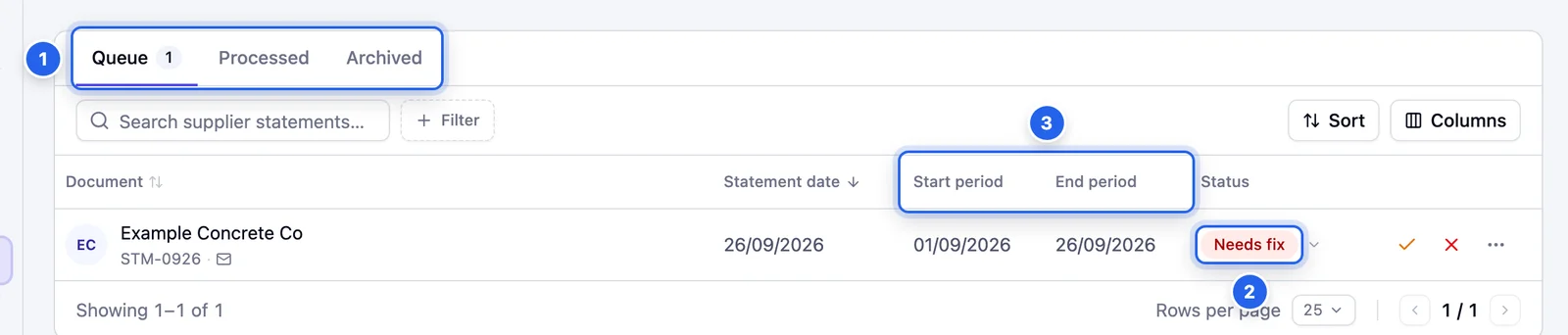
- 1 Queue, Processed and Archived tabs.
- 2 Needs fix. Click the status to see why.
- 3 The period the statement covers.
2 Read the reconciliation
Open the statement. Pulsify checks each line against that supplier's invoices and credit notes in Pulsify and in Xero or MYOB. Every line gets a status:
- Matched. Found, same amount and dates.
- Unmatched. Something's off. The note under the line says what: not found, a different amount, a different date or due date, outside the statement period, listed twice or more than one possible match.
- Payment. A payment line. It counts towards the balance but isn't matched.
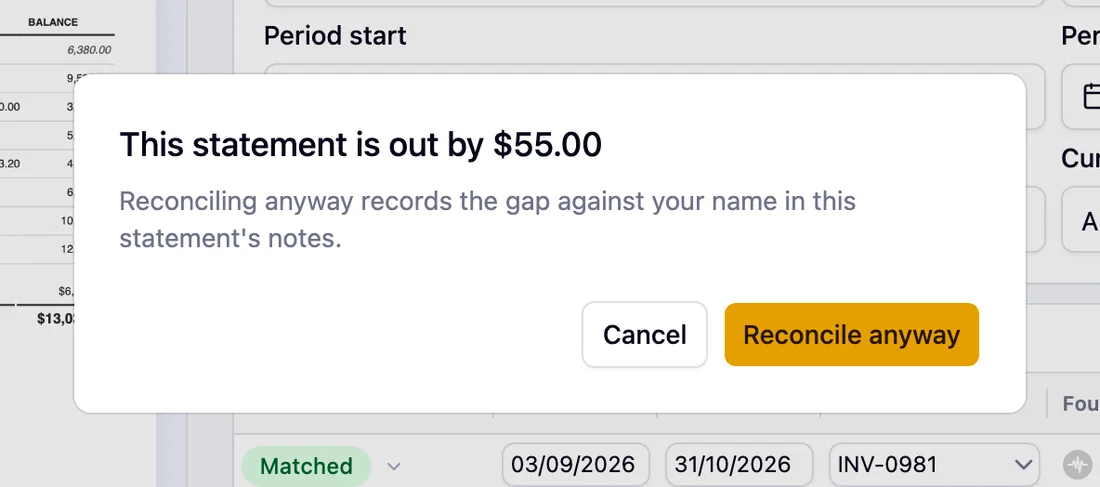
The Balance card checks that the opening balance plus the lines equals the closing balance. If it doesn't, you'll see how far apart they are.
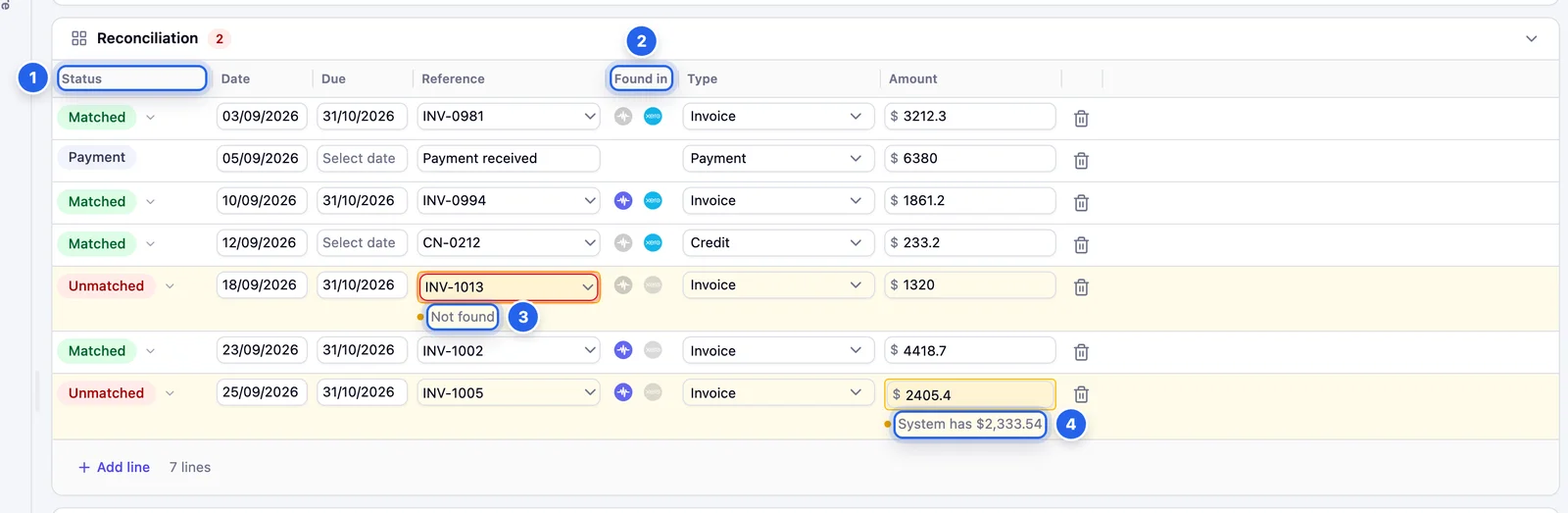
- 1 Status of each line.
- 2 Where Pulsify found the invoice: in Pulsify, in Xero or MYOB or neither.
- 3 Not found. No invoice with this reference for this supplier.
- 4 The amount you have for this invoice, when it's different from the statement.

3 Sort out unmatched lines
Click an unmatched line's status to see what's wrong and what you can do:
- Accept $X variance, Accept date difference or Mark as matched, when you've checked and you're happy.
- Mark as not matched, when you've looked and it isn't there. Follow it up with the supplier. The line still stops you reconciling.
- Re-check automatically, to undo your own accept or not-matched call and let Pulsify check the line again.
Everything you accept is recorded with your name.

4 Mark as reconciled
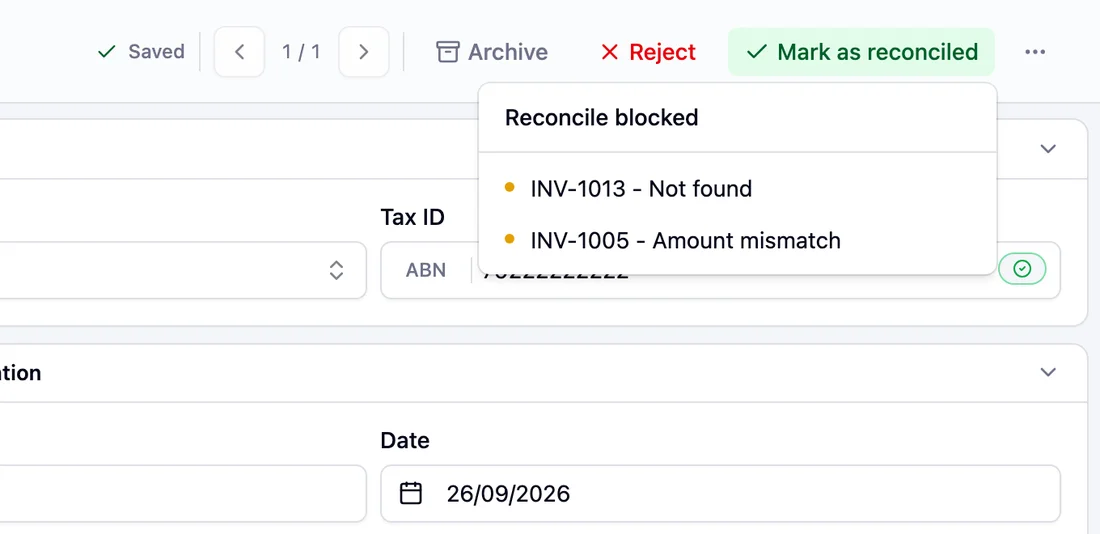
When every line is matched and the supplier is linked, click Mark as reconciled. The statement moves to the Processed tab.
You can't reconcile while a line is still unmatched. The button lists what's in the way.
A balance gap doesn't stop you. Pulsify asks you to confirm, then records the gap and your name in the statement's notes.

- 1 Archive
- 2 Reject
- 3 Mark as reconciled
- 4 More, including Open file and Send as invoice.
If it wasn't a statement
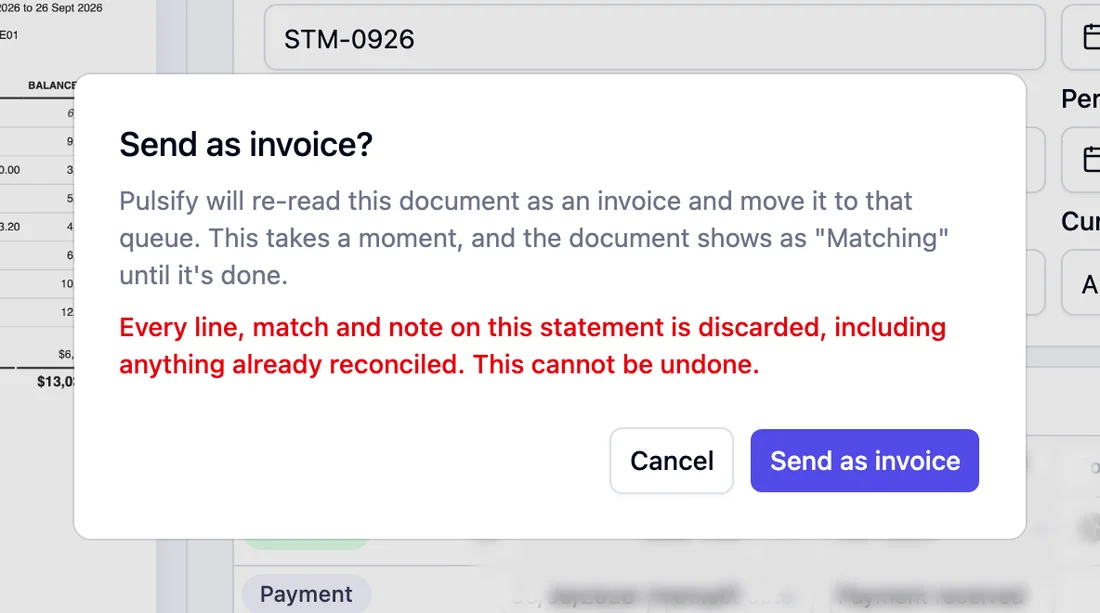
If Pulsify read an invoice as a statement, open the ⋯ menu and choose Send as invoice. Everything on the statement, including its matches and notes, is thrown away and the document is re-read as an invoice. Admins and Approvers can do this while the statement is in the queue.
Put a statement on hold from its ⋯ menu in the list, or from its status on the statement, if you're waiting on the supplier. Reject it if it's wrong, or archive it if you don't need it. You can restore a reconciled or rejected statement to the queue at any time.
Common questions
Does reconciling change anything in Xero or MYOB?
No. It records that you've checked the statement and moves it to the Processed tab. Nothing is written to your accounting software.
Why is a line Not found when I know we have that invoice?
Matching ignores case, spaces, punctuation and a leading word like Invoice. If the supplier printed the number differently, or the invoice was entered against a different supplier, it won't match. Find the invoice and pick it in the line's Reference field. If you have checked the line yourself you can also choose Mark as matched from its status menu.
A statement was read as an invoice. How do I fix it?
Open it and choose Send as supplier statement from the ⋯ menu. Pulsify re-reads it and moves it to Supplier Statements. Company Admins and Approvers see this option.
Who can reconcile statements?
Company Admins, Approvers and Reviewers. Submitters can't see statements.
Stuck on something?
Book a call and we'll set it up with you.